Mac has a handful of features that rely on a constant internet connection, these include the update feature.
OS X El Capitan, (10.11) the latest version of the Mac operating system is approximately a 6GB download.
Operating system software and all apps in the Mac App Store will automatically download and update themselves. However if you have metered internet or are living in a data drought you’ll probably want to stop these updates from downloading in the background.
Automatic app updates are controlled by the Mac App Store. To change the App Store’s settings, go to System Preferences > App Store. You can still enable checking for updates, by ticking the AUTOMATICALLY CHECK FOR UPDATES BOX, and leaving the other boxes blank.
This enables you to update when you have access to the appropriate data needed and allows the system to alert you to new updates available but does not download them without your permission.
NOTE: Install system data files and security updates is recommended to be checked.
When you are ready to install the updates go to System Preferences > App Store>Show Updates.
You can then decide on which updates are the most important and click on UPDATE or UPDATE ALL (if you have the required data available).
Important: If you’re going to use this automatic system update option, be sure that Time Machine backups of the Mac are allowed to be made on a regular schedule. Time Machine will do this automatically as long as it’s setup and the backup drive is available. If you do not make regular backups of your Mac, it is not recommended to use an automated system update installation feature.
Installing via a USB Memory Stick
How you handle Apple IOS updates is going to depend on which update it is. To install onto a memory stick or external hard drive follow the instructions below. You might be able to do this when you have access to free wifi or a friend / relative who has a larger data plan than yourself.
For major upgrades like 10.11 (e.g. El Capitan) your device will download an installer through the App Store
copy the installer file from the computer you downloaded it to, to an external drive
It’ll show up in the Applications folder when you download it and you can just move that or right-click and copy/paste it to your external drive
You can also use that method to create a bootable disk in case you ever need to reinstall OS X on your computers
For the minor updates they’ll be posted to the Apple website
you just need to download it from there to your external drive
Please note, while all care has been taken in compiling BIRRR documents, we recommend that you check with your system operator before implementing any changes. Operating software can also be downloaded at any Apple Store, there may be a charge for this.
Tips shared by BIRRR taken from Apple Chat help, October 2015. While all care is taken compiling these fact sheets, we advise you check with Apple Supportif you have issues or concerns.
Footnote: All information compiled by Amanda Salisbury & Kristy Sparrow for BIRRR and is current as at 18th October 2015.
Some Providers are offering what is referred to un-metered data, this means that any data you use will not be counted against your actual data allowance. While no unmetered access is offered on satellite connections, some ISPs like SkyMesh, iiNet, Optus and Telstra (Bigpond) offer certain services that are not counted as part of your data allowance.
These are some common questions and answers:
What ISPs offer Unmetered services?
Skymesh (for NBN Fixed Wireless and NBN Fibre – Netflix content delivered over Australian peering links will not be counted against your data allowance. You have to be an Australian Netflix subscriber)
The Freezone offers a range of video and radio content for iiNet, Westnet, Netspace, Internode and Adam Internet customers to enjoy without taking a hit to their monthly quota. Everything from movies, music, sports and gaming content is available along with several live streamed events throughout the year.
Skymesh, iiNet and Internode offer unmetered access to Netflix in Australia on Fixed Line NBN and Fixed Wireless NBN. In the Case of iiNet and Internode this is also offered on standard ADSL bundles (Not Naked DSL connections). Netflix works on a per month subscription payment.
Telstra offers unmetered access to Presto and a variety of services, detailed in the link above, on Bigpond Wireless Broadband, Telstra Home Broadband (including NBN FTTX and ADSL). Presto works on a per month subscription payment.
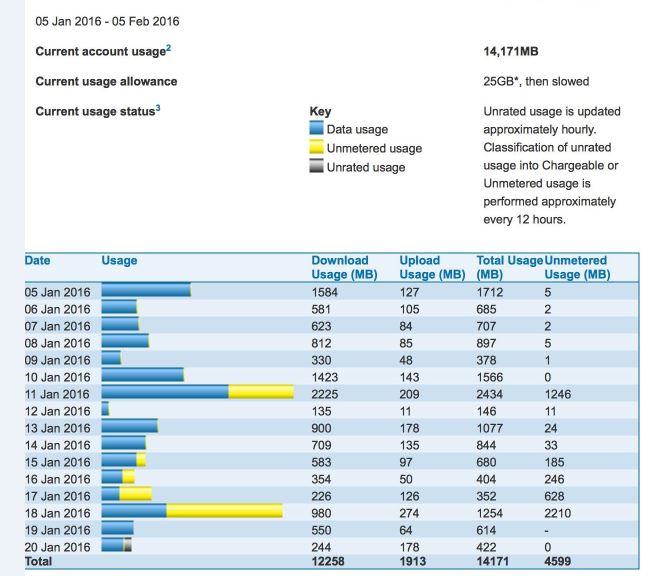
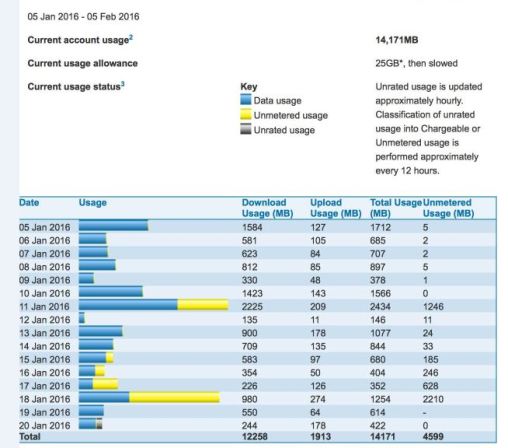
Presto unmetering shown in yellow on a Bigpond Usage Chart
NB: Whenever you see the BigPond Unmetered icon (green dot), download as much as you like and it won’t count towards your monthly usage limit. Please note that the Green Dot may not be on all pages,
Telstra/Bigpond also offer unmetered access to some distance education sites and Portals:
A letter written to ICPA Federal (Isolated Parent’s Childrens’ Association) from Telstra Country Wide re unmetering education websites used by distance education students.
Telstra is committed to listen, learn and respond as positively as possible to issues raised by the ICPA. In this day and age, the internet is a vital source for students and in a country the size of Australia, there are geographical, capacity and commercial realities why it’s not possible to provide the full range of broadband services in some regional and remote locations. What we can do is help families better manage their broadband allowances. From 1 September 2015, Telstra will be un-metering a number of key Education websites for all BigPond and Telstra Mobile Broadband users.
This is on top of the 21 sites that are already unmetered. This was in response to a motion made at last year’s conference and following a visit by Andrew Coull and the Telstra Country Wide team to the Alpha region in Queensland where ICPA members and local families talked about what was most important to them.
To address one of the challenges regional and remote communities face in order to provide children with the best possible tools and support to further their education, Telstra is adding value to their broadband allowance through the un-metering of educational websites. These sites were identified with the ICPA and relevant Departments of Education. We may change sites from unmetered to metered at any time. Of course, as these are new unmetered sites, we don’t expect to make changes anytime soon.
Unmetering Terms & Conditions On and from 1 September 2015 unless otherwise advised, a number of key education websites will be unmetered. Some of the key sites include: Queensland Department of Education and Training (e.g. det.qld.gov.au, education.qld.gov.au)* WA Department of Education and Training (e.g. http://det.wa.edu.au/*) SA Department for Education & Child Development (www.centra.sa.edu.au) Creative Generation (www.creativegeneration.deta.qld.gov.au) Scootle Community (https://www.scootle.edu.au) Moodle (http://Moodle.openaccess.edu.au) When accessing these sites, Telstra Mobile Broadband users, as well as BigPond Broadband Members on ADSL, Cable or Mobile Broadband plans (excluding hourly plans), can access downloads, video streams and editorial content without affecting their monthly usage limit. Note that the un-metering does not apply to Telstra Satellite users.
Please note that unmetering won’t apply if you’re accessing the internet using International Roaming. Additionally, some elements of an unmetered site may be metered if they are sourced from other websites that are metered, including things such as advertisements, YouTube videos, Google maps or social media services. Every time you visit or refresh a page you will incur the download of that content.
Kind regards Libby Dalton Executive Officer | Telstra Country Wide
Note: BIRRR have been working with Telstra Country Wide to ensure elearn and iconnect are included on the unmetering list for QLD distance education students. As of 4th term 2015 these sites were unmetered however changes have been made in early 2016, if QLD families find themselves ‘shaped’ whilst these sites are being worked through please contact BIRRR ~ birrraus@gmail.com For further information contact the department of education in your state.
UPDATED February 2016
These sites were identified in consultation with the ICPA and a number of Departments of Education. We will continue to monitor and refine the websites included and make changes from unmetered to metered as appropriate.
It’s very simple, assume you have a Telstra Bigpond wireless plan with 4GB of data. You browse to Presto.com.au and start watching a whole heap of movies to the amount of 10GB, and then you browse to say youtube.com and use 3GB of data on Videos.
Telstra will calculate your actual usage to be:
3000mb (3gb) of 4gb used (while viewing YouTube) +
10gb of unmetered content (while viewing Presto) for a total of
13gb used but only billed for 3gb, leaving with 1gb of metered data for the rest of the month.
Once you use that 1gb of data, then your service will be slowed down (shaped) to 64kbps which is as fast as dial-up. Unmetered content will also unfortunately be shaped.
Remember with bigpond you are free to change plans once a month to reflect your usage habits. However the highest plan currently available is 25GB.
Why Not satellite services as well?
Unfortunately, the cost of providing a satellite service to a consumer or business, added in the limited amount of backhaul (backhaul is like a very heavy freight train, the more locomotives at the front the more wagons it can pull) available, means it is not affordable to provide this service.
*Please note, while all care has been taken in compiling BIRRR documents, we recommend that you check with your ISP regarding unmetering. As the #datadrought mainly impacts mobile broadband and satellite customers we have focussed on unmetering for these technologies. Your provider may have other sites that are unmetered. Thanks to BIRRR members Julie Stott & Kye Rosendale for assistance in compiling this document.
Apple released iOS-9, a major operating system upgrade, on Sept 16th.
The good news is that the iOS 9 update is smaller than usual, at 1.3GB, the bad news is that there is a lot of other data usage that comes with the update, data demand that will multiply if you have many Apple devices.
The heavy, data demand includes: updating your computer’s iTunes; backing up your devices; updating the operating system; reinstallation of your apps; and, the updating of your apps to be iOS-9 compatible.
In preparation to the update, do the following:
Plan your data use: Prevent auto-updating on all your devices.
Go to >Settings >iTunes & App Store >AUTOMATIC DOWNLOADS
toggle-OFF both ‘Apps‘ and ‘Updates‘.
Make space: Review your apps, photos and videos and uninstall unused items. It will be a tough task for many 8/16 GB iPhone or iPad users to free up enough space. Here’s how.
Get iTunes ready: Install the latest version of iTunes on your computer. Here’s how.
Update Apps. Use iTunes as download-central for app updates across all your devices. Here’s how.
Sync your device to iTunes. Make sure all your devices are synced across iTunes. Here’s how.
Backup your devices. Backup to iTunes (not iCloud) if you are data challenged. Here’s how.
Update iOS update
Once Apple releases the iOS 9 update, you will see a pop-up on your iOS device notifying you that a software update is available. It is recommended that you wait a couple days after the launch to update. There’s always a chance complications will surface. If you’re not the type who wants to spend time troubleshooting issues, it’s best to wait a few days after release to update.
You can download directly through your device but doing this wirelessly will take longer and may exhaust your mobile data. A better suggestion is to update through your computer, using iTunes.
Plug in the device charger, so you won’t run out of battery and lose the download.
Connect your device to your computer and update via iTunes. Here’s how.
After the update, review that your apps are all up-to-date by repeating steps 4 and 5 above.
Many people have been finding that Windows 10 has been a bandwidth hog, and this is due to Microsoft new forced updates policy, but it dosent mean there isn’t a way around this. Windows 8 is also guilty. These simple steps will help you to reduce the amount of data windows uses.
WINDOWS 8:
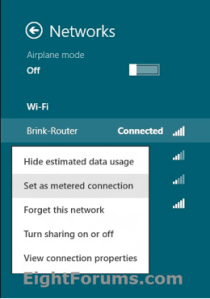
Navigate to the signal icon on the task bar.
2. Click it to bring up the list of networks and find the one you are currently connected to.
3. Right click and select set as metered network:
WINDOWS 10:
Should I upgrade to Windows 10?
Microsoft is currently offering the operating system for free for a limited time to Windows 7, Windows 8, and Windows 8.1 users – until 29 July 2016.
The free upgrade will not be available for those using Windows XP and Vista, but there are still upgrade options available.
No one is forcing you to update to Windows 10. There are plenty of happy people with computers that “just work” running Windows XP or Windows Vista. Microsoft, however, no longer issues security updates and patches for Windows XP. This means that your PC is more vulnerable to malware. Windows Vista will no longer be receiving these patches in April of 2017. Windows XP support no longer operates. If you are running XP and having issues this is probably the cause and now is the time to upgrade.
You can do an upgrade for XP and Windows but it will cost you to do so. Windows is offering a box version for sale to XP and Vista users.
Remember you have until July 2016 to do the free upgrade and it would be a good idea to wait until a few more bugs are sorted from the upgrade before proceeding if you want to limit the amount of data that you have to use.
If you are short on data and want to install Windows 10 you don’t necessarily have to do it via the Windows Update and use your data allowance. You can download a file (3GB) to a USB stick at https://www.microsoft.com/en-au/software-download/windows10, and the USB will work like an installation disk (to start, click on the ‘setup’ file on the USB).
Maybe if you are able to get to a faster internet connection somewhere, e.g. a library in town, you can download it there. You can also share the USB stick with others, it will work on multiple PCs with authorised copies of Windows 7 and 8.
What if I do not want to update to Windows 10?
Again, no one is forcing you but Windows will no longer be issuing security updates and patches. This makes your computer vulnerable to malware and makes your computer unstable.
If you want to stop the update to Windows 10 until you have the data available :
How To Change Windows Update Settings in Windows 7
Click on the Start button, followed by Control Panel.
Click on the System and Security link.Note: If you’re viewing Control Panel by Category, you’ll see this link. If you use the Large icons or Small icons view, just choose Windows Update and then skip to Step 4 below.
In the System and Security window, click on Windows Update which is one of the bigger links and located about mid-way down the list.
With Windows Update now open, click the Change settings link on the left.This will open a window with the heading Choose how Windows can install updates.
The settings on this page give you a fair amount of control regarding how Windows 7 will receive and install updates from Microsoft.
What about the major problem everyone had with Windows 10?
Like everyone else on the BIRRR you probably saw the horror stories about the continuous rebooting and downloading that happened with the initial Windows 10 upgrade. This was caused by an update KB 3081424.
Windows released an update – KB3081436 – and this has reportedly fixed the rebooting issue.
So if you were one of the early updaters and you stopped the process because of the rebooting you should be right to re install.
If you have not done so already follow this link , to reserve a copy and get the download
If the update does not work automatically then you may want to remove KB 30081424
Press start button, scroll to control panel, opening the Control Panel, clicking on ‘View installed updates’, selecting ‘KB3081424’, clicking uninstall in the toolbar and restarting the computer.
If this is all too much and you want to go back to your previous operating system (OS) then this is how you can uninstall the Windows 10 update until the bugs are fixed. REMEMBER TO DO A BACK UP FIRST
The other issue with Windows 10 is that they have decided we will not have a choice when and how we receive updates. This is a problem for those of us on limited downloads.
There is no way to turn off automatic downloads in Windows 10 but users can turn their network connection to a metered connection. When you set a connection as metered, you’re telling Windows it’s a connection with restricted data — such as a mobile data connection. Windows won’t upload updates on a metered connection — it won’t even automatically download Windows updates.
To set your current Wi-FI network as a metered connection, open the Settings app and navigate to Network & Internet > Wi-Fi > Advanced options. Activate the toggle under “Set as metered connection.” The current Wi-Fi network will become a metered connection.
In Windows 10 open up the list of networks as in Windows 8, then click Network settings at the Bottom to open up the following window:
This will allow users to choose when they do updates depending on the amount of data they have or access to free Wi-Fi. This means users will have to regularly change the setting back to un metered at which point the upgrades will automatically download.
The updates are not going to be as large as the initial upgrade and they do keep your operating system running as efficiently and safely as possible. There is also the issue that if you switch to metered and forget to upgrade for a while, you will have to do a large upgrade when you do remember.
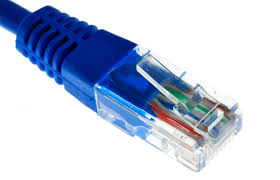
Note – Ethernet network connections can’t be set to metered. If your internet connects to your computer with a cable that looks like this, then you are using an ethernet connection which cannot be set to metered.
Ethernet Cable
If you are connecting by a different type of cable/connection (for example, so types of mobile broadband modems) then it may or may not be possible to set it as metered, depending on your modem.
If you are connecting using WiFi, then you can set as metered.
Internet service providers can charge by the amount of data used (the amount of data sent and received by your PC). That’s called a metered Internet connection. These plans often have a data limit, and if you exceed the limit you might have to pay extra. In some cases, you aren’t charged extra but your connection speed becomes slower until the billing cycle ends.
If you have a metered Internet connection, setting your network connection to metered in Windows can help you reduce the amount of data you send and receive
It depends on whether your Internet service provider charges you by the amount of data you use. Here are some general guidelines:
WiFi networks—Windows sets WiFi networks to non-metered by default. But if your Internet service provider charges you by the amount of data you use, setting your network connection to metered can help you limit your data usage.
Mobile broadband networks—Windows sets mobile broadband networks to metered by default. But if your mobile broadband service is actually unlimited, then you might want to change the network setting to non-metered.
If you’re not sure what to do, keep an eye on your data usage. If you find that you’re being billed for extra data usage, setting your network connection to metered can help you manage this.
You may also need to ensure that your Windows 10 Computer is not using data to update other computers nearby. It is useful to read this article, which shows how to turn it off.
If you need to contact Telstra please ring the correct department, it will result in quicker problem solving. Get to know your plan, look on your bill are you a business or residential customer?
Telstra Country Wide have a dedicated website for rural, regional & remote users.
TELSTRA FAULTS
Phone: 13 2200 for Residential, 13 2000 for Business for faults, antennas, equipment and plans etc (for all faults other than RRADIO & NGWL faults – see below).
Radio Phones & NGWL Services 1800 772 346 (1800 R RADIO) or 1800 696 495 (1800 MYNGWL), for customers using radio and NGWL services to report service difficulties or faults. There is also a dedicated email address (rradio@team.telstra.com) for online fault reporting.
Mobile Assurance Team Mobile Assurance provides support to Pre-Paid, Consumer, Telstra Business and Telstra Enterprise & Government customers. They operate 24/7, and assist customers who are experiencing mobile and wireless service difficulties and faults.
Consumer customers: 13 2200
Business customers: 13 2000
Footnote:
All information compiled from BIRRR discussions with Telstra and Telstra website and is current as at 01/09/2020
TELSTRA Contacts DOCUMENT prepared by Kristy Sparrow for BIRRR
If you can get some Telstra mobile coverage at your location a Telstra Extension Device may assist you in boosting your signal.
Network coverage extension devices amplify the network signal your mobile device receives, which extends the area that your device can work in.
This devices can help you connect to the Telstra Mobile Network from further away than normally possible, or in areas where signal may struggle to penetrate – such as indoors, or in hilly or dense terrain.
Mobile broadband network coverage extension devices are also known as ‘repeaters’ as they repeat the signal from one location to another.
In contrast, network coverage extension devices that connect directly to a mobile device are often called external antennas. They are described by their power or ‘gain’, which is a measure of how much they can amplify the mobile signal.
Both of the Telstra Go Repeater and Telstra Smart Antenna products below have been tested, authorised and approved by Telstra for use on the Telstra Mobile Network.
Telstra will be switching off 3G in 2024. With this in mind BIRRR does not recommend spending large amounts of money on boosting 3G service. 3G is being replaced with 4G (if spending any money on antennas or repeating equipment please ensure these are 4G compatible) and also be aware that boosting 3G service may not deliver faster speeds or reliability.
NB: Extension devices are carrier specific, if you require coverage across multiple carriers then you will need multiple models. This page lists only Telstra branded extension devices.
Telstra Network Coverage Devices:
This slideshow requires JavaScript.
Telstra Smart Antenna RRP $1080
Telstra Go Smart Vehicle Mobile Repeater RRP $864
Telstra Go Stationary Repeater RRP $816
*Professional installation may require additional charges. Prices correct as of 1st August 2020.
BIRRR highly recommend using surge protectors with these devices and a UPS unit to power the repeater during general mains power failures or when the generator is off. They’re designed to power a desktop for 15 minutes or so, but are large enough to power a CelFi repeater for much longer.
** After 3G switch off these devices will continue to operate but only with 4G (700 MHz, 1800 MHz).
Telstra Recommended Antennas:
This slideshow requires JavaScript.
For further information on Telstra recommended extension devices or to have them professionally installed contact the Telstra Mobile Assurances Team:
Contact the Telstra Regional Australia Team if you require help with coverage at your address and to check your options for mobile extension devices.
The above information has been provided by discussions with Telstra, other service providers also offer solutions for boosting signal strength, please be aware that these must be registered devices. It is best to contact your service provider directly. Illegal boosters carry a large fine as they can interfere with the mobile network.
” It is an offence under the Radiocommunications Act 1992 (the Act) to operate an unlicensed radiocommunications device, or possess this device for the purpose of operation. A person found guilty of this offence may be imprisoned for two years for each offence. A body corporate may receive a penalty of up to $270,000 (1,500 penalty units) per offence (sections 46 and 47 of the Act). Other penalties may apply, such as the interference offence provisions at Part 4.2 of the Act.” ( ACMA)
REPORT A PROHIBITED DEVICE ~ If you are aware of anyone having these prohibited devices, you can:
call the ACMA’s customer service centre on 1300 850 115
Every residence in Australia will be able to access some form of NBN – either FIXED, FIXED WIRELESS or SATELLITE (also referred to as LTSS and Sky Muster) by 2020. Sky Muster (Satellite) services became available in April 2016, interim nbn satellite services (ISS) have now ceased.
You can see what type of nbn you are mapped for here:NBN Rollout MAP
There is lots of misinformation and myths surrounding the nbn rollout, you can read about some of them here:Myths About NBN Sky Muster
REMEMBER:
Every Australian residence will be eligible for a nbn connection – even if you live really remotely.
If you are currently using another form of internet such as mobile broadband, you are still eligible for nbn.
Each residence is mapped for nbn, even if you have several houses on your property.
If you are receiving an nbn Fixed Wireless or Satellite service, please keep your traditional landline, you do NOT have to switch your voice service, regardless of what you may be told by your existing provider.
Sky Muster performs very differently to the old interim satellite. The interim satellite (ISS) had approximately 48,000 subscribers – larger-than-planned-for data plans were sold and the satellite became oversubscribed resulting in the FAIR USE POLICYand reduced data and speeds for users. The LTSS has 30 x the capacity of the ISS.
HOW TO CONNECT
nbn Sky Muster Satellite connections are available now.
NBN satellite services are designed to provide internet services to homes and businesses that fall outside of the fixed line and fixed wireless areas in Australia and its external territories. The new NBN satellite (LTSS/Skymuster) will reach homes and businesses residing in the most isolated parts of Australia, including the outback and remote offshore territories. Homes and businesses must be within the satellite footprint.
NBN have allowed for additional capacity in case of more subscribers than expected. A second satellite (launched in October 2016) offers future capacity cover. The Sky Muster Satellites have a life span of around 16 years.
DATA & PRICING
Data Limits are up to individual RSP’s (service providers) in line with nbn fair use policy. Internet service providers set the prices for the services available. NBN sets prices at the wholesale level and the uniform national wholesale price of $24 a month is the same for the basic 12Mbps service across fixed line/wireless/satellite. Check out the BIRRR comparison of Sky Muster providers to see what data allowances you can access. As of 01/12/23 nbn Sky Muster Providers now offer unlimited data plans across three speed tiers – 25/5, 50/10 and 100/20.
nbn SKY MUSTER FAIR USE POLICY
The nbn™ Sky Muster™ satellite service Fair Use Policy is in place to help ensure fair access to the service – especially during peak usage times. This Fair Use Policy applies between nbn and the provider.
Your provider will likely have a separate Fair Use Policy which applies to your premises – as satellite capacity is a limited resource. Some providers may have less capacity, which may not be noticed during off-peak times. But during peak hours, when there is more traffic, congestion may occur if your provider does not have enough network capacity- this can lead to slower speeds and the occasional ‘buffering’.
NB: nbn Sky Muster Plus and Plus Premium plans are entirely managed by nbn and thus do not have provider related congestion/management.
SPEED
Sky Muster has delivered significantly improved speeds and capacity to remote and regional areas compared to what was previously available on the Interim Satellite Service (ISS). A Fair Use Policy applies on the service to ensure that performance and quality of service standards are not degraded by high-volume users. Sky Muster offers peak wholesale download speeds of up to 100Mbps and upload speeds of up to 20Mbps. Consult with your provider as to what speed tier will best suit you.
Speeds actually achieved over the Sky Muster network, depend on the technology over which services are delivered to premises and some factors outside nbn control like equipment quality, software, broadband plans and how the end user’s service provider designs its network.
EQUIPMENT
Once you place an order for Sky Muster with your chosen provider, a nbn technician will make an appointment to install the equipment needed (a roof or pole mounted dish and an internal modem). A standard installation of the equipment is currently free. However, end users should ask their preferred provider if they have any other fees such as activation fees or fees for routers etc as each provider currently differs. If you require wifi from your Sky Muster service you will need to have a compatible router, contact your provider to discuss your options.
VOICE
Homes and businesses with Sky Muster connections can use VoIP services, if this is supported by their retail service provider. However unlike the fibre offering, the satellite terminating box inside a premises doesn’t include a port to plug in a phone. You will need a router to plug in your VOIP compatible phone. When ordering a VOiP plan on nbn Sky Muster it is important to ask your provider to ensure TC1 (voice prioritisation) is activated.
It is important to remember copper and traditional phone services (such as HCRC, Radio phones & NGWL) will still be maintained in areas to be served by fixed wireless and satellite, so customers have the option of retaining their existing phone service. BIRRR recommends keeping your existing landline.
Footnote: All information compiled from BIRRR discussions with NBN contacts &NBN website, and is current as at 04/01/24
NBN SKY MUSTER FACTS DOCUMENT prepared by Kristy Sparrow for BIRRR updated 04/01/24
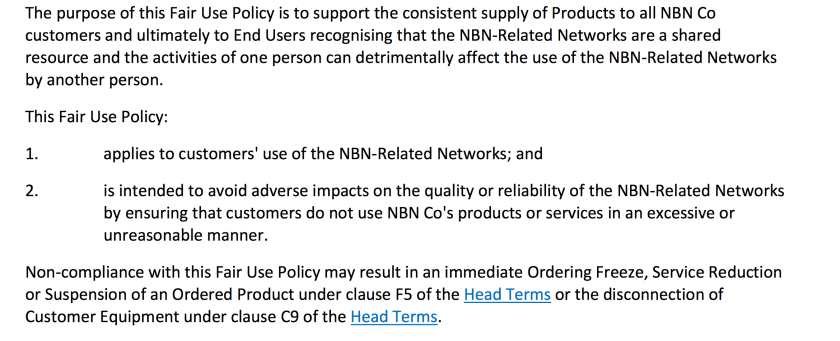
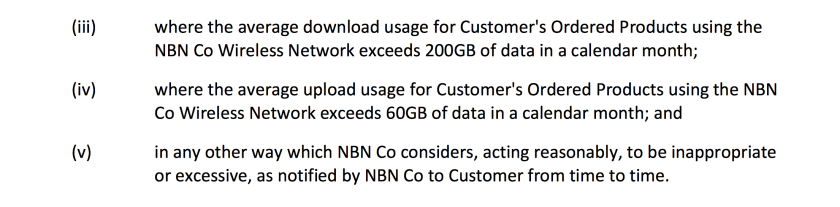
NBN Co’s ‘FAIR USE’ POLICY & ACTIONS(compiled by BIRRR)
Screenshot of section of NBN Co’s ‘Fair Use Policy’ from their website*:
Until earlier this year, Interim Satellite Service (ISS) customers were offered up to 60GB/month data plans by Retail Service Providers (RSP).
NBN Co deemed these plans to be excessive, and in February this year (2015) NBN Co moved to enforce its fair use policy for customers on the Interim Satellite Service.
A briefing document for retail service providers (dated 30 January) indicates that starting in December 2015, NBN Co moved to have RSPs that sold ISS access to restrict individual customers’ usage to “no more than 50GB download per 4 week rolling aggregate of usage, measured weekly (the Threshold download limit) so as to facilitate RSP compliance with the ISS Fair Use Policy.”
“If RSPs continue to not comply with the Fair Use Policy, then NBN Co will exercise its rights under the WBA [Wholesale Broadband Agreement] by limiting identified services (users exceeding Threshold download limit) from February 2015 if this becomes necessary,” the document states.
Since this time, the ‘shaping’ of end users has increased dramatically, with NBN stepping in (on occasion) where there ISS providers have failed to ‘respond’.
A new ‘rolling four week’ measure of the end customer’s data usage has also been enforced (on top of the ‘billing month’ generally enforced by the ISS provider). Now ANY four week period can be used as a measure by NBN to locate ‘excessive data use’.
This new rule for ISS customers seems to have come into play around April.
As a matter of interest (and comparison), the NBN Co itself published figures from October 2014 showing the average data use of Australians to be 58GB/ month with those on NBN using an average of 67GB/month.<
BIRRR are aware of the inequalities of this policy, and will continue working with NBN to address them.
*NBN Fair Use Document: Has since been removed from nbn website (1/12/16)
A Big thanks to Alan from ‘Smedley’s Engineers – Bits & Bytes’ for providing the following information on Spyware and Malware for Windows users. It will work for all versions of Windows from XP on up to Windows 10. The use of some free and definitely safe applications and methods listed below can assist in removal of Malware and Spyware that can cause unwanted, unusual and excessive data usage.
These notes are based on experience in dealing with system performance issues and malware, virus and other infestation over a number of years and from shared and sharing of that experience with other Windows support professionals.
Download the following three applications that are all freely available from the: www.bleepingcomputer.com web site. Download them all before executing any of them. I recommend that the three applications be run in the order listed. Also it is important to run them all in order as only partially completing the steps may take your system off-line. At the end a reboot of the system initiated by Adwcleaner is an absolutely essential step.
Save any open work before proceeding.
There are detailed descriptions of each utility on the same page and more technical details of each ore available on their home pages.
Using the “Download Now” will get you the most current version of each one. The http://www.bleepingcomputer.com web pages also list other utilities that may be needed in more complex infestations but these are the three that I use almost all of the time.
Execute the JRT.exe once it has completed downloading. It is a Command Line interface, it checks itself to verify that the newest version is being run and will update itself if necessary.
Follow the prompt to press any key to continue. If “System Restore” is disabled the creation of a “System Restore Point” creation will fail. The application may show some commands that it cannot perform. This is dependant of the individual system configuration. As JRT runs it may stop any already running processes including open web browsers.
Once it has finished it will produce a notepad txt file of the items it has cleaned or eliminated.
Execute the Roguekiller.exe once it has completed downloading. It will run an initial check on the system as well as check that it is the current version.
Once the check has completed press the Scan button to continue. The completed scan will show any Processes, Registry settings, Host file issues, AntiRootkit, Files/Folders, MBR (Master Boot Records) and Web browser items that have issues.
A pop- up screen offers the purchase of the PRO version. It is your choice to subscribe of not. From my experience I select all Processes, Registry settings Host file items but only selectively choose and Web Browser add-ins to be deleted.
Then hit the delete button.
Once completed close the application.
For those who are running an x64 bit Windows system there is a version built for it that is downloadable from the Roguekiller home page at: http://www.adlice.com/software/roguekiller/
Execute the Adwcleaner.exe once it has completed downloading.
Press the Scan button to continue.
Once the scan is completed press the Cleaning button.
This will be followed by three OK buttons.These close all running applications and will reboot the system. This is essential in the cleaning process as it can leave your system off line if not completed. So save any open work first.
Once the system has rebooted a notepad txt file listing the items found and fixed by Adwcleaner will be shown on the screen.
Making it a habit to run these three utilities on a regular basis from the previously downloaded files will assist in keeping your system free of malware unwanted or uninvited infestations. Each application checks itself to verify that you are using the most current version.
Note: Alan supports individual and small business users as a part of his Smedley’s Engineers Pty Ltd business and if BIRRR members are in real strife with their Windows systems and wanting remote support he is happy to assist. Alan has clients all over Australia and Internationally on systems he never actually gets to see.
Operating in the Hinterland of the Central Coast of NSW
Our group has grown dramatically recently, and as we gather information across the often-confusing landscape of ‘bush broadband’ throughout Australia, we have created this ‘one-stop shop’ for relevant information and links.
Please bear in mind that the admins of both this site and the Group are volunteers – we do our best to make sure info is up-to-date but it’s best to contact us via the FB Group page. Thanks for visiting and here is hoping we achieve vastly improved access to the internet for all Australians, regardless of where we live in this wide brown land.







 Better Internet for Rural, Regional & Remote Australia (BIRRR)