Where do I buy appropriate telecommunications equipment and receive advice?
The Regional Tech Hub can produce a free, independent connectivity report outlining all of your options for a broadband and / or voice connection. To get a report done fill in this form here . Thoroughly investigate your connectivity options before deciding on the best provider, installer, or equipment supplier. Unfortunately the telecommunications industry can have sales biases so it is key to ensure you are receiving factual and independent advice.
If you are looking for equipment for mobile coverage, a desktop site survey can assist you with determining if there is mobile coverage in your area and with which carrier/s, what frequencies are used and what equipment might be needed to get connected. The businesses below can assist in providing advice.
The above businesses can then put you in touch with a specialist in your area who understands the requirements for your site. The report will advise likely signal levels, the sort of mobile services available, the best antenna and extension device for your location and where to point your antenna.
Network Extension Equipment Suppliers and Specialists:
Telco Antennas – Advice, equipment and installation of Starlink, mobile and wi-fi extension products
OnWireless – Advice, equipment and installation of mobile and wi-fi extension products
Telstra can provide a professional antenna installation. The costs vary depending on the location (see here for an idea of costs), so it is best to complete the form and discuss a quote that includes installation costs first.
Ensuring the installer you choose is accredited and has the appropriate industry licenses for the service they provide.
Check that they are registered business, with an ABN and have insurance.
A registered cabler can install or repair all communications cabling in your home or office. They cannot install or repair cabling owned by a carrier or NBN.
Make sure the cabler you choose is registered. You can check here
Using a registered cabler gives you peace of mind. They understand the Australian standards that keep customers, cablers and the network safe.
How do I ensure all equipment is licensed and not illegal?
Active antennas or repeaters can boost a mobile signal. Repeaters such as these that require power to the unit (Telstra Smart Antennas & Nextivity Cel-Fi Repeaters) require licensing. If they are not licensed they are ILLEGAL boosters.
Illegal boosters/repeaters carry a large fine as they can interfere with the mobile network.
Penalties for breaching the rules are serious. Offenders could get fines of over $1.5 million or up to 8 years in prison.
Report illegal equipment
If you are aware of anyone having or using illegal equipment, or you see someone selling it online, please report it to ACMA. Using this illegal equipment can have life-threatening consequences. You can:
call the ACMA’s customer service centre on 1300 850 115
email ACMA at info@acma.gov.au
BIRRR does not recommend self installation, please contact one of the professionals above.
NB: *If you are a network extension specialist or installer and would like to be added to the Regional Tech Hub map of suppliers and installers, please fill in thisform .
Note: BIRRR has gathered the information above from businesses, which we understand to be true and correct at time of publishing. This does not equate to any form of endorsement. Please thoroughly investigate your options before deciding on the best provider, equipment supplier and ensure the installer is accredited and has the appropriate industry licenses.
Use a Gmail account (or another web mail provider). Then you are not tied to one service provider. They are easier to setup on smart devices. They have better spam filters.
Example of how to set up a webmail account using Gmail and what to do in the changeover.
Visit here and sign up for a new Gmail account https://mail.google.com/. Once you have signed up for a Gmail account do the following:
Send everyone an email telling them of the new email address from the old email account (that way you will have all their contact details and their email programs recognise you.)
Make sure all replies go out on your Gmail Account, with your contact details in the signature.
After a month or so, set up a vacation responder email on your old account’s webmail (login to the old webmail account) that tells people that it is about time they start using the new email address! You will still see the emails in Gmail, they dwindle off over the next 6 months. You will still get the odd ball ones years after!
Change all your “contact email address” on all the accounts you have, like MyGov, banks, online shopping places etc. The vacation responder will help you pick up the ones you have forgotten.
Decide whether you will use the web email through a web browser or use your favourite email program on your computer – it really depends on what you prefer.
You can still keep your old email address, just don’t use it. Most RSP will allow you to keep their email address for a small fee. For example – If you don’t have a Telstra product, you can pay about $30 a year to keep the email address. Just leave the bigpond vacation responder on permanently. After a year or 2 – just ask for the email address to be discontinued. If you are leaving Telstra/Bigpond make sure you tell them you still want to keep the Bigpond email address (for at least a year, and YOU decide when to stop it)
Business Email address
If the Bigpond email address is a business email address – consider getting an appropriate business email address. If you already have a website, investigate how to get an email attached to it, your web host should be able to help.
Whilst telcos state there is mobile coverage for some 99% of Australia’s population, this only equates to approximately 38% of Australia’s landmass, and some of this coverage requires antennas and/or mobile repeaters.
Here are some options to provide Australia wide coverage, improve the current mobile coverage or simply chat to your friends and family via radio.
Satellite Communications – All of Australia
Apple iPhone – https://support.apple.com/en-au/101573 – Newer model Apple iPhones (from model 14 & above can access Emergency SMS via Globalstar satellites. Free for two years.
Note 1: Professional installation is recommended for the best experience. Seek advice from your kit supplier.
Note 2: Where possible use the best quality, wideband, high gain, ‘knock-down’ antenna(s). A twin mobile antenna solution supports MIMO, providing an improvement in reliability & faster data connection.
*Please note, while all care has been taken in compiling BIRRR documents, we recommend that you check with the company providing the equipment for the latest features and costs.
BIRRR is aware of large numbers of complaints from our members regarding mobile issues since the 3G shutdown. These tips below have been designed to assist with helping you escalate these problems with your mobile provider, as well as things you can check to see if your experience can be improved.
Your mobile experience can be affected by a range of factors, such as the device you are using to access the tower, your distance from a tower, any external antenna in use, how many devices are connected to the tower at a given time and any obstructions such as terrain, buildings or vegetation that may block the mobile signal. If your issues relate to the migration of your 3G landline (NGWL) to Telstra’s 4G Fixed Wireless (4GFW) or Starlink Satellite system you can find more information here.
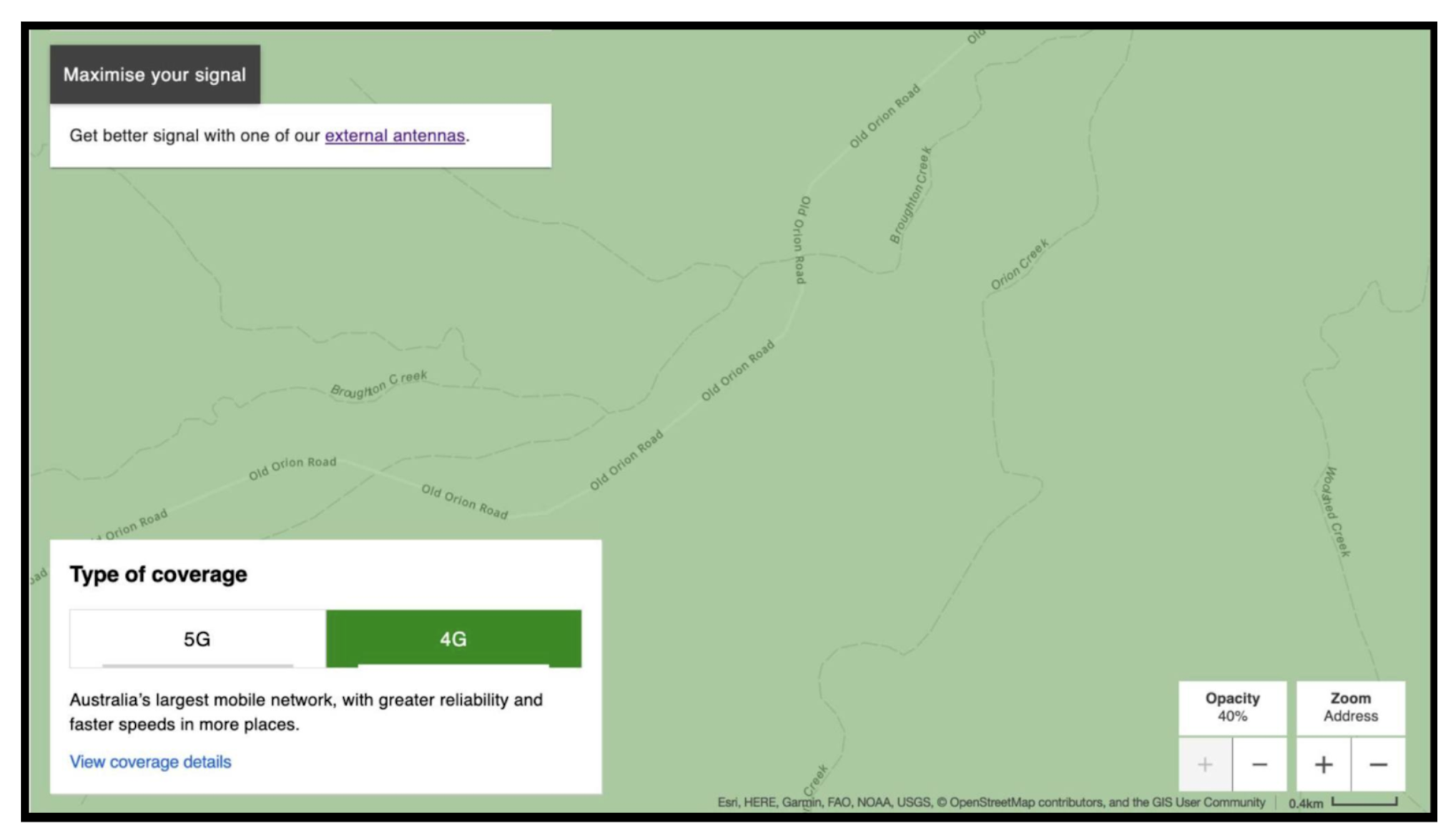
Enter your coordinates or address in the search bar, then click “Search.”
You’ll see a map showing coverage at your location. Look for handheld coverage – it’s green for 4G and purple for 5G, white means NO HANDHELD COVERAGE. Take a screenshot of the image (handheld coverage).
Zoom out (click the “minus” button) and select “Maximise Your Signal” to check for antenna coverage. Take a screenshot of the image (antenna coverage). NB: Once you zoom out the marker disappears, but your location usually stays in the middle of the map.
Tip: Save the screenshots in a document. Include your address and coordinates for future reference.
Important: Triple Zero Impacted Devices
From 28 October 2024, mobile carriers are legally required to prevent mobile phones that cannot call emergency services (including Triple Zero) from accessing the mobile network. This includes older 3G handsets, as well as some 4G/5G handsets. If your device is blocked, you will not be able to use that handset for voice or data. More information here
Signal bars & coverage equivalence
Since the 3G Shutdown you may have noticed changes to the signal bars on your phone. Telstra have stated that it is important to note that fewer bars does not mean you are receiving a lesser service.
Signal bars differ between technologies and mobile devices, therefore they are not always a good indicator of coverage and performance. Almost every device is different when it comes to this as there are currently no standards uniformly shared across all manufacturers. Comparing bar readings between different devices could be like comparing apples to oranges.
Similarly, when it comes to different technologies there is no direct correlation between bars and user experience on one technology compared to another. As you can see in the picture, Telstra has measured the same device in the same location – the only difference being whether it was on the 3G or 4G network. The left results show 3G receiving higher bars, but a far lesser overall experience in both download and upload speeds compared to the 4G service on the right.
Because 4G is a newer, more efficient technology it is essentially meaningless to compare signal bars between what it delivers and what 3G delivers. More information here.
Antennas
Mobile antennas are designed for a certain band or frequency. You may receive bars of coverage on your mobile phone, but calls may cut out, be poor quality and data upload and download speeds degraded if you are using an incompatible antenna which is not on the right frequency in your location.
IMPORTANT NOTE: Older 3G-only (850Mhz) antennas may falsely appear to provide a useful signal, however replacement with a quality 4G compatible antenna is critical for a reliable service. Both Telstra and installers have advised that replacing Cel-Fi antennas is critical to maintaining a connection.
Please note this information can be complex, BIRRR recommends that you seek professional advice for antenna selection and installation.
Assess Your Current Antenna/s
Follow these steps to check your fixed home / business antennas:
3G has now been switched off so antennas that worked on 3G may now be incompatible. The elements on a 3G-only antenna are typically all the same length, whereas a 4G-capable antenna has elements of varying length. (see image below)
The elements on a 3G-only antenna are typically all the same length, whereas a 4G-capable antenna has elements of varying length.
Click on image to get a full size image
Check the labels on your antenna. If you see a code starting with an 8, or one that shows frequencies starting with an 8, they are 3G only (see image below)
Check for damaged cabling
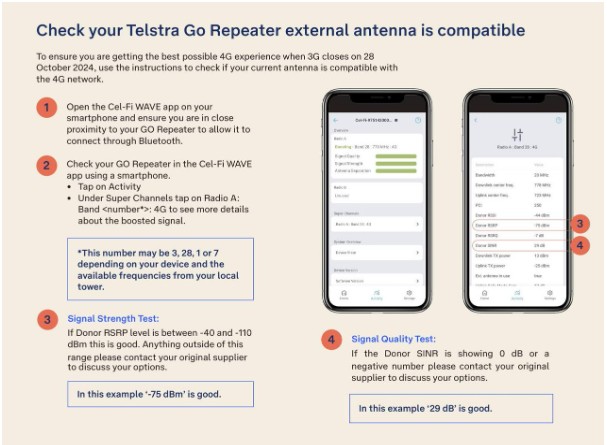
Follow these steps to check your Cel-Fi Go Repeater external antenna is compatible
Open the Cel-Fi WAVE app on your smartphone and ensure you are in close proximity to your GO Repeater to allow it to connect through Bluetooth.
Tap on Activity
Under Super Channels tap on Radio A: Band <number*>: 4G to see more details about the boosted signal. *This number may be 3, 28, 1 or 7 depending on your device and the available frequencies from your local tower.
Signal Strength Test: If Donor RSRP level is between -40 and -110 dBm this is good. Anything outside of this range please contact your antenna supplier. In the example in the image below ‘-75 dBm’ is good.
Signal Quality Test: If the Donor SINR is showing 0 dB or a negative number please contact your antenna supplier. In the example in the image below ‘29 dB’ is good.
Existing external antennas that cover 698 Mhz to 890 Mhz, and or 698 Mhz to 960 Mhz are fine for low band 4G and 5G i.e. 698 – 960Mhz. Low band 4G and 5G are the most likely bands that remote and regional customers will experience. Telstra Antenna Fact Sheet Download here
IMPORTANT NOTE: Older 3G-only (850Mhz) antennas may falsely appear to provide a useful signal, however replacement with a quality 4G compatible antenna is critical for a reliable service. Both Telstra and installers have advised that replacing Cel-Fi antennas is critical to maintaining a connection.
If your antenna is incompatible (e.g. designed for 3G), you’ll need to upgrade to a 4G-capable antenna. It’s likely you’ll also require new cabling.
Cel-Fi Wave App has an antenna Positioning Test tool for all cel-fi units connected to a directional antenna. The tool helps the user to find the best direction to point the antenna. Go to the Settings page and open the Antenna Settings section. Follow the troubleshooting tips as needed. More information here
NB: See notes under cel-fi repeaters about installers and where to purchase antennas.
Take photos & note antenna position
Photograph your current antenna setup and record the direction it is pointing. Add this information to the document you started above. If using the wave app take screenshots of the app and add these to the document. This information will help technicians troubleshoot more effectively.
If you’re using a Cel-Fi repeater to enhance your mobile coverage, here are some important settings to check, along with guidance on software updates and compatibility. Please note that while Cel-Fis are designed to extend coverage by boosting signals, they cannot overcome network congestion issues.
Check your Cel-fi is a newer model and compatible with 4G
Below is a BIRRR graphic identifying the Telstra repeaters that will and won’t work on 4G networks.
Click on image to get a full size image
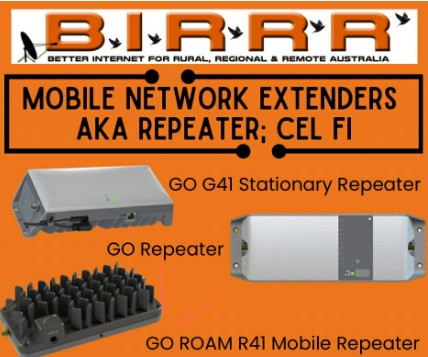
There are three models of newer cel-fi repeaters (see image below).
Cel-Fi GO G31: is suitable for both stationary and mobile use and supports 4G 1800Mhz and 4G 700Mhz frequencies. These are the most common mobile network repeaters used in regional areas, particularly if you purchased several years ago. For many in RRR areas with only Telstra Band 28 available (703 Mhz – 788 Mhz), the GO G31 will continue to provide excellent service, both as a stationary and a mobile device.
Cel Fi GO G41: is a newer model stationary repeater designed for stationary use that supports selected 4G and 5G bands. Cel-Fi GO G41 auto selects two bands simultaneously, supporting carrier aggregation (if you have the signals), however it does cost more. For the G41 to utilise 5G 850 MHz (n5/n26) Nextivity needs to develop new software, which should become available next year – date not available as yet.
Cel-Fi ROAM R-41: is a newer model mobile repeater designed for mobile use that supports selected 4G and 5G bands. The R41 Cel-Fi Roam works on 5G 2600MHz frequency (Band 7 or n7) where it is available – right now – but needs Nextivity to provide new software to utilise 5G on 850MHz (n5/n26). The R41 auto selects a single frequency band at any one time.
Important Note on Illegal Boosters:
Unapproved or illegal mobile boosters interfere with mobile networks and potentially result in financial penalties. Always use authorised equipment to ensure compliance and optimal performance.
Check Your Cel-Fi Settings and Software
Depending on your specific Cel-Fi model, the settings may vary. Contact your cel-fi supplier to access the correct settings.
Download the Cel-Fi WAVE app: First, download the Cel-Fi WAVE app from either the Google Play Store or Apple App Store on your smartphone. This app will allow you to manage and monitor your Cel-Fi device.
Check Cel-Fi Settings Open the WAVE app and ensure your smartphone is in close proximity to the Cel-Fi repeater so it can connect via Bluetooth. Tap on Settings > Band/Channel Settings, then expand the 4G selection. Make sure each band is toggled on (indicated in blue). This will enable the GO Repeater to boost 4G signals for better mobile coverage.
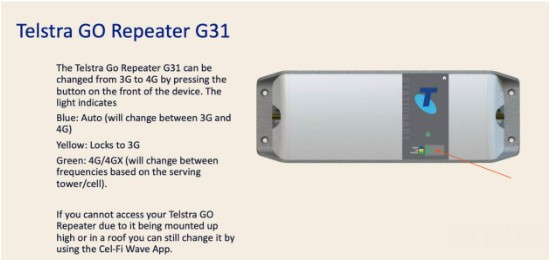
The Cel-Fi GO G31 can also be switched to 4G by pressing the button on the unit
Currently the Cel-Fi R41 should be locked to Band 28. Long term, this is obviously not desirable as it limits the features of the product. There is no known date for the software release required.
Check for Software Updates:
In the WAVE app, tap Settings > Software Version and check if there are any updates available. If an update is required, tap Update now and wait for the process to complete. You can track the progress through the WAVE app.
Screenshot the wave app settings, take a photo of your cel-fi and add to the document you created above.
Use this Telstra document which outlines how to Check if your Telstra GO Repeater is configured to boost 4G signal with instructions on how to download the app, ensure your software is updated, check your settings and check if your external antenna is compatible.
Light indicator colours on a Telstra Go Repeater G31.
Where to purchase and get advice/ help with installation:
BIRRR does not recommend self installation. If you are looking at upgrading your repeater and/ or antenna, or for professional installation. BIRRR recommends the following companies who will be able to give advice specific to your location and situation:
Telstra: offers professional installation services for antennas purchased directly from them, contact Telstra on 1800 305 307 to discuss your options or use this link here
Check your network settings, software updates & other tips
If you’re experiencing mobile coverage issues following the 3G shutdown, ensure your device is optimised for the best possible performance. Here’s how:
Keep Your Device Updated
Check that your device’s software is up to date. Software updates often include important improvements for network compatibility and performance.
Check Your Mobile Network Settings
BIRRR have found that the following checks are especially important after a device software update
Turn your phone’s mobile connection off and back on. Use Airplane mode to disconnect and reconnect your network modems. This can help your device find the best available signal in your area.
Also try turning your phone/device on and off
Check that VPN is not connected – On an iphone > Settings > General > VPN & Device Management > VPN, then click the i symbol next to the connected VPN, turn off toggle Connect On Demand, then turn off VPN
Check that 5G Standalone is switched off – On an iphone > Settings > Mobile > Mobile Data options > Voice & Data > Toggle Off 5G Standalone
Reset Your Network Settings
Be aware that this process will erase all saved Wi-Fi networks, passwords, and cellular settings, so you may need to re-enter these afterward. How to Reset Network Settings:
Android
Go to Settings > System > Reset options > Reset network settings.
Tap RESET SETTINGS to confirm.
iPhone
Go to Settings > General > Transfer or Reset Iphone > Reset > Reset network Settings > Enter Passcode if prompted > Select Reset Network Settings again to confirm
Understanding Factors Impacting Signal
Several factors can interfere with mobile signal strength:
Physical obstacles: Buildings, trees, hills, and tall objects (e.g., silos) can block or reduce signal levels. If you’re indoors and experiencing poor signal, try moving closer to a window or an open area to improve reception.
Device limitations: The quality of your handset or device can impact signal strength.
Proximity to towers: Signal strength decreases the further you are from the nearest mobile tower.
Congestion: During periods of high demand, such as tourist seasons, natural disasters, or major events, network congestion can lead to weaker signals and slower data speeds.
Illegal Boosters: Unauthorized signal boosters can interfere with mobile networks, affecting your connection and that of others in the area. Take note if your issues occur during specific time periods – record these times on the document you have started above.
4.Check for Network Outages
Check that your area is not experiencing network outages that may be impacting your service.
Start by making a detailed list of the issues you’re facing. Can you make calls? Do calls drop out? Can you load data on your phone? What signal is showing (bars, SOS, satellite symbol)? Does the issue happen at specific times or on certain dates? Also, note the device you’re using. Add this information to the document you started above.
If you are on the move and having issues – on a road or in a paddock, screenshot your location in maps to add to the document.
Now, it’s time to reach out to your provider – your provider is who you pay for the mobile service. It could be Optus, Telstra, Vodafone or a reseller – you need to contact your provider, even if they resell through another carrier.
Telstra have recently opened a 3G Shutdown Helpline
Contact Telstra’s 3G Shutdown Helpline 1800 990 853 BETWEEN 8AM TO 7PM AEDT MONDAY TO FRIDAY
There is also a form where you can lodge 3G shutdown issues here
Use a fixed broadband connection, when at fixed locations
If you are using the mobile network as a fixed home or business connection, consider looking into other options for broadband and voice calls. Mobile networks were not designed for the large data use needed today and in regional areas can often be congested.
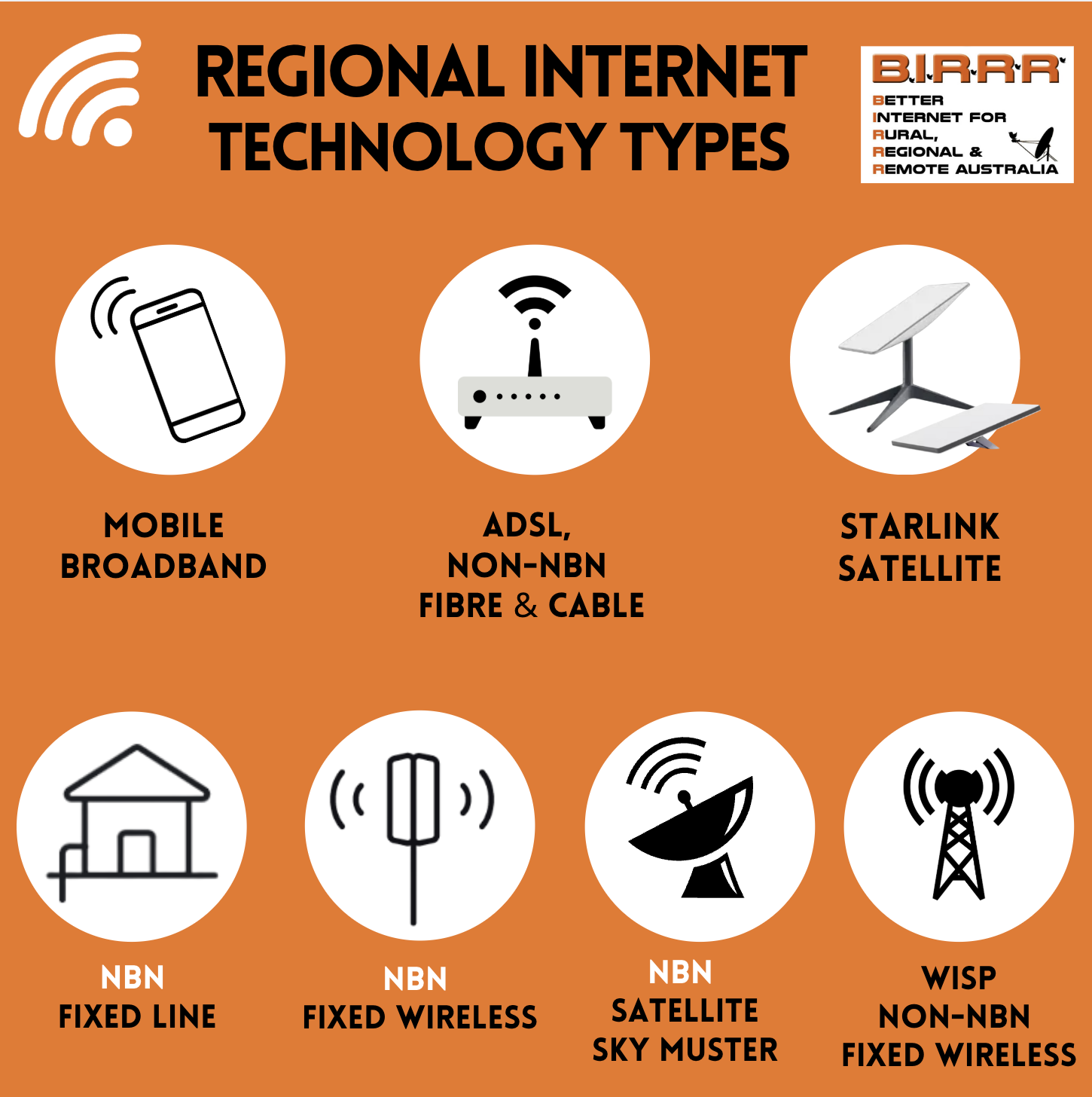
Review your current connection and if using the mobile network, consider moving to a fixed home / business connection. There are a range of options in regional areas now – check the technologies available to you and check that you are using the best plan, provider, and equipment for your needs. Telecommunications are constantly changing, so it’s a good idea to do these checks on a yearly basis.
For free, independent advice on your technology, contact the Regional Tech Hub. They can guide you on staying connected with the right solutions for your needs at www.regionaltechhub.org.au
Look at getting a fixed home connection utilising one of the technologies available in regional areas (that isn’t the mobile network).
NB: All Australian premises can access a nbn connection (or equivalent), however not all providers sell all types of nbn. Check your address here: https://www.nbnco.com.au/learn/rollout-map , if you have issues in your address mapping the Regional Tech Hub can help get this resolved.
Use Wi-Fi Calling to make voice calls and SMS over Wi-Fi when at fixed home/business locations.
NB: Based on BIRRR’s experience, Wi-Fi Calling often works better if your device is set to Airplane mode and then reconnected to Wi-Fi. This setup reduces interference from weak mobile signals.
Check out BIRRR’s Page – Staying Connected When on the Move – for suggestions on how to extend mobile coverage and utilising mobile alternate technologies to stay connected. https://birrraus.com/2024/05/29/on-the-move/
Businesses: Check that your payment systems work with both Wi-Fi and SIM cards (mobile network). Contact your bank or provider to ensure compatibility and avoid disruptions.
Community Wi-Fi Hubs: Connect with your local council or chamber of commerce to discuss installing community wi-fi in strategic hot spots in your town – there are grants available to help with the costs
Get your LGA to develop a connectivity plan, and ensure this considers mobile and fixed broadband gaps and opportunities. BIRRR are happy to assist LGA’s who are seeking independent advice – we can be reached at birrraus@gmail.com
Spread the word and refer to trusted sources: Encourage your community to seek independent advice from BIRRR and the Regional Tech Hub. Misinformation remains a major barrier in regional connectivity, but together, we can break through it.
Developed for BIRRR by Kristy Sparrow, Julie Stott, Alana Moller & John Kitchener from extensive research and publicly available information on 3G closure, updated 22/02/2025
*Please note, while all care has been taken in compiling BIRRR documents, we recommend that you check with your service provider / equipment manufacturer regarding 3G shutdown
A Wi-Fi router enables multiple devices to connect to the internet and share a single broadband connection, whilst providing security and network management functions. For a smaller home a single Wi-Fi router may provide satisfactory coverage.
Note: Discuss your router requirements with your provider, as they generally support the routers they provide or recommend.
802.11.ac – Wi-Fi 5, or 802.11.ax – Wi-Fi 6?
ACin the router name indicates Wi-Fi 5 and AX, Wi-Fi 6. Wi-Fi 6 is the latest and current Wi-Fi standard and Wi-Fi 5 devices are increasing unavailable.
AX3000 indicates a device with 3,000Mbps of theoretical bandwidth. The greater the number, the greater the capacity of the router to connect many clients at good speed; however, do consider that your actual internet connection capacity may only be 50Mbps or less depending on your internet connection. You’ll need Wi-Fi 6 devices, tablets, laptops and smart phones to benefit from the additional efficiency, however Wi-Fi 6 routers will work with Wi-Fi 5 devices and earlier Wi-Fi releases. The more powerful the router the greater the cost, the greater the speed, number of active clients and system capacity. The trick is finding the happy medium for your situation at a reasonable cost.
Our recommended routers support a future Mesh network
A mesh network or system provides for additional routers or mesh extenders that creates coverage to rooms where the Wi-Fi signal is weak.
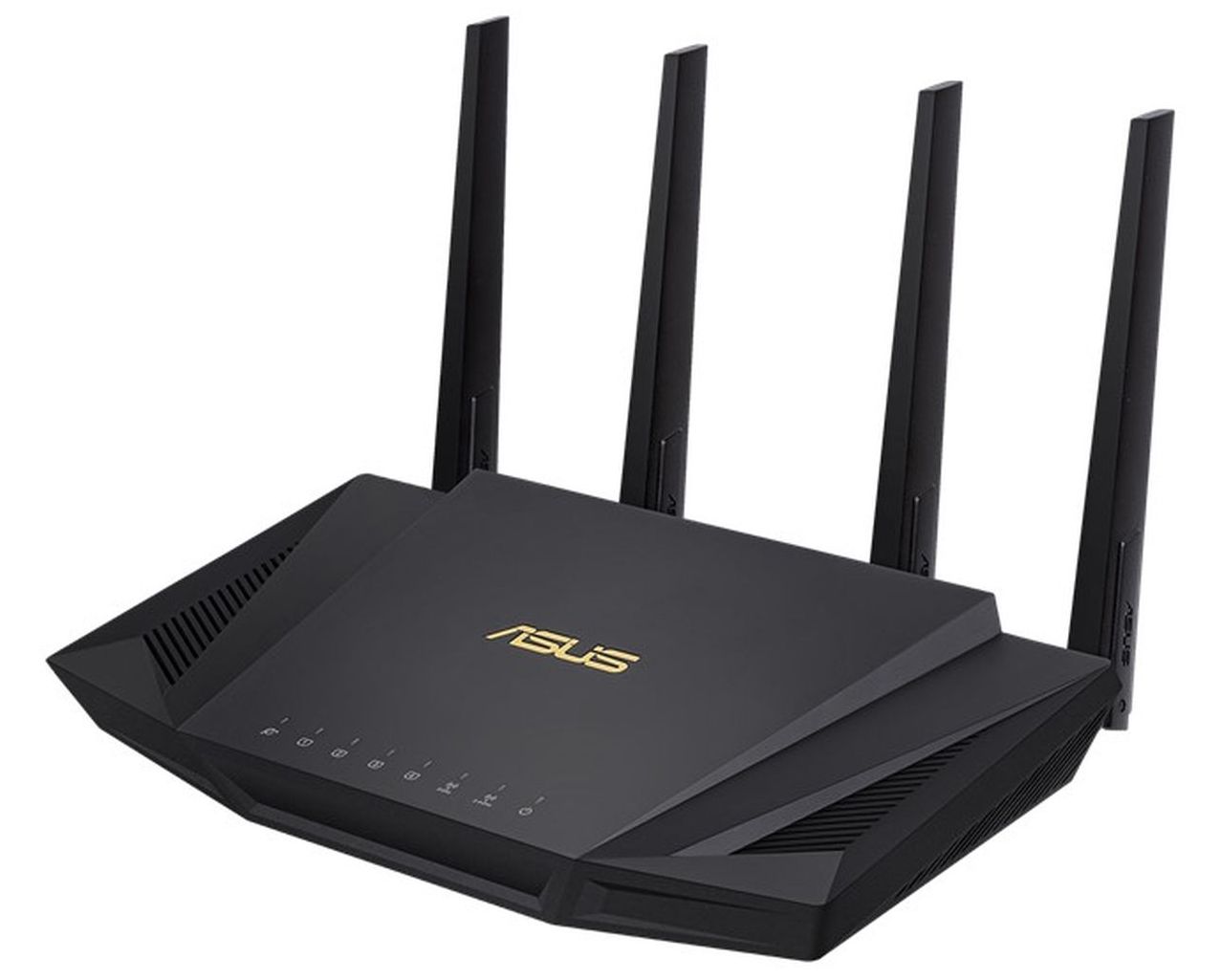
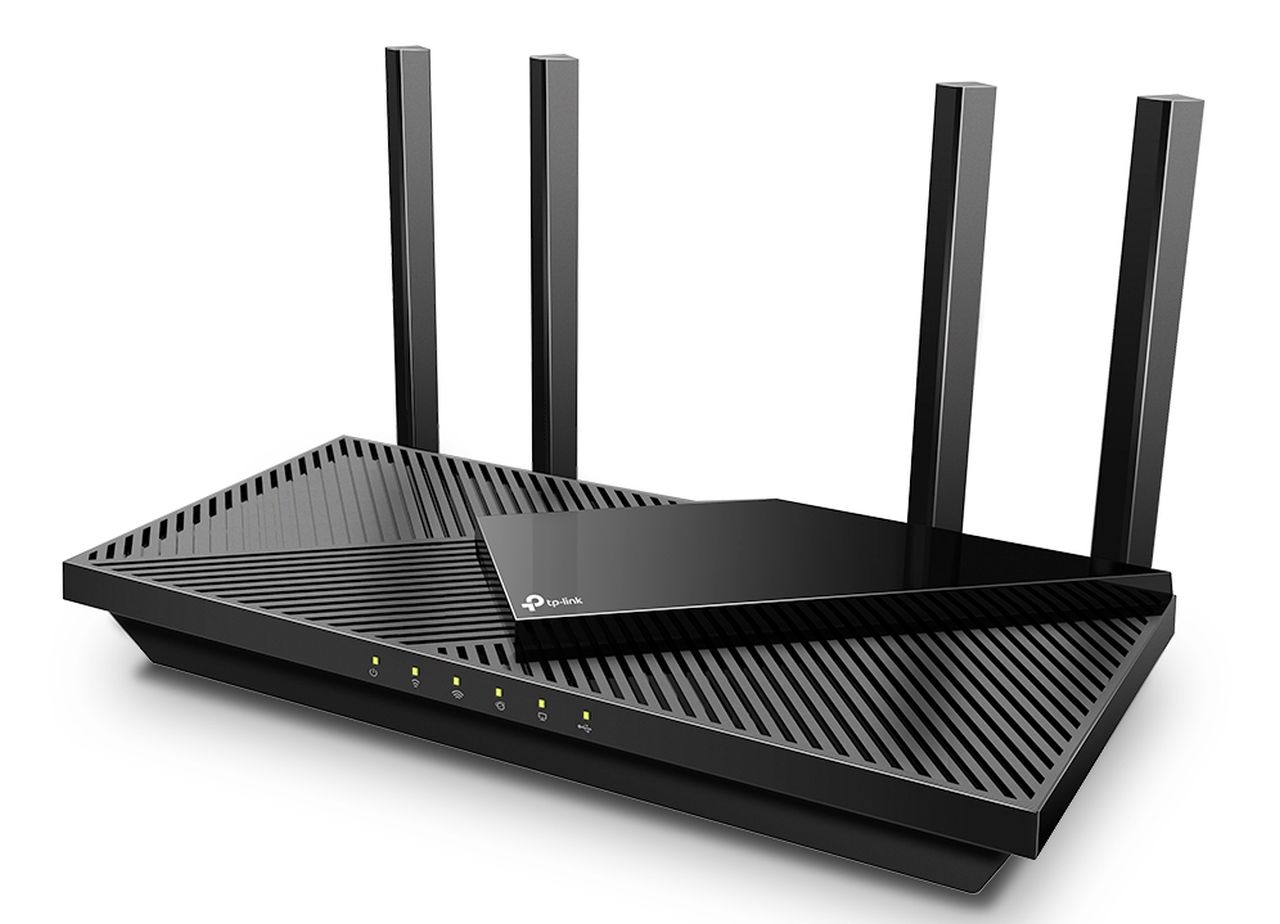
Recommended mid-range AX3000 Wi-Fi 6 routers with this capability are the ASUS RT-AX58U, at around $300 and the TP-Link Archer AX55, at less than $200.
This 802.11ax (Wi-Fi 6) 3,000Mbps theoretical bandwidth router provides excellent capacity and coverage for a large home. Two ASUS RT-AX58U will extend coverage using the proprietary Asus AiMesh feature. A very useful feature of most Asus routers is Traffic Analyser – Statistics, which details the 24-hour usage of every connected client.
It identifies the amount and time of high usage clients and will greatly assist in maintaining traffic usage within quota.
This 802.11ax (Wi-Fi 6) 3,000 Mbps theoretical bandwidth beamforming router provides excellent capacity and coverage for a large home. Extend coverage with TP-Link proprietary OneMesh and additional TP-Link mesh extenders. https://www.tp-link.com/au/onemesh/product-list/
Recommended Router Features
Both routers provide mesh capability if you buy an additional AiMesh router (Asus), or OneMesh extender (TP-Link). A ‘mesh network’ will extend your wi-fi coverage. A maximum of five Asus AiMesh routers is recommended. For TP-Link, that’s the router plus four mesh extenders. The TP-Link hard limit is a total of eight devices.
Both Asus and TP-Link provide a smart phone router App for easy management.
Wi-Fi 6 is backwards compatible. It requires Wi-Fi 6 compatible devices to realise the Wi-Fi 6 efficiency advantage.
Please buy local if possible.
If you have had your (most likely old and slow) router since you had Sky Muster installed; it’s probably time for a change
*Please note, while all care has been taken in compiling BIRRR documents, we recommend that you check with your service provider regarding your own connection issues.Thanks to John Kitchener, Chris Dowling & Tim Stockman for helping us with router advice.
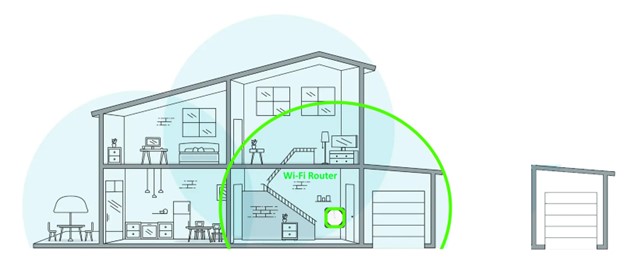
The above diagram represents the key technologies that are typically deployed to ensure Wi-Fi coverage in the home and extended home environment.
Most systems start with a quality Wi-Fi Router which connects to the internet source such as the nbn Network Termination Device or NTD. This network is shown in green.
Should the single Wi-Fi router fail to service all corners of the home, a Mesh System is required. A mesh system allows a device to remain connected as it roams the home e.g a smartphone or tablet. The three-device meshed network is identified, by green, orange and blue.
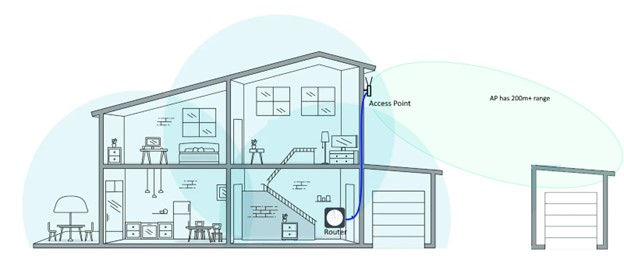
If Wi-Fi coverage is required in the yard and up to 300m away, an External Access Point can be added. Handheld or fixed devices within range, can access the internet.
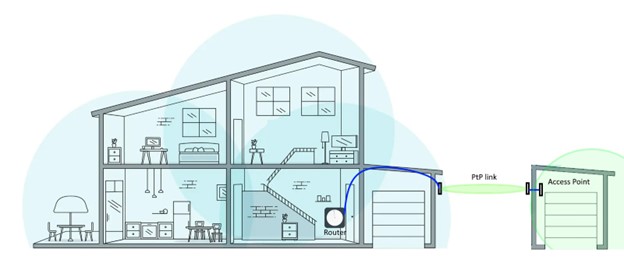
If Wi-Fi coverage is required in a nearby building or at some more remote location, a Point-to-Point Transparent Bridge and Access Point is provided.
Details of each of these solutions follows.
The Wi-Fi Router
For a smaller home a single Wi-Fi router may provide satisfactory coverage.
A Wi-Fi router enables multiple devices to connect to the internet and share a single broadband connection, whilst providing security and network management functions
Some routers can form the genesis of a future mesh system. Several good mid-range routers with this capability are identified in the RECOMMENDED nbn SKY MUSTER ROUTERS article here.
802.11.ac – Wi-Fi 5, or 802.11.ax – Wi-Fi 6?
AC indicates Wi-Fi 5 and AX, Wi-Fi 6. Wi-Fi 6 is the latest and current Wi-Fi standard and Wi-Fi 5 devices are increasing unavailable.
AX3000 indicates a device with 3,000Mbps of theoretical bandwidth. The greater the number, the greater the capacity of the router to connect many clients at good speed; however, do consider that your actual internet connection capacity may only be 50Mbps or less depending on your internet connection.
You’ll need Wi-Fi 6 devices, tablets, laptops and smart phones to benefit from the additional efficiency, however Wi-Fi 6 routers will work with Wi-Fi 5 devices and earlier Wi-Fi releases.
The more powerful the router the greater the cost, the greater the speed, number of active clients and system capacity.
The trick is finding the happy medium for your situation at a reasonable cost.
A mesh system
The mesh network is an evolution of the earlier days of wireless extenders.
As Google Nest (a mesh system) explains “A mesh network is a group of connectivity devices, such as Wi-Fi routers that act as a single network, so there are multiple sources of connectivity around your house instead of just a single router”.
If you google “Best Wi-Fi Mesh Systems”, you will be met with a bewildering array of mesh systems. Choose a system that is within your budget and suitable for your coverage needs.
The mesh has a primary router that manages DHCP as for the simple Wi-Fi router solution i.e. one main router and several slave routers. The slave routers act as meshed access points.
The mesh elements must be placed not too far and not to close ie in the Wi-Fi Goldilocks zone where they can securely wirelessly connect, but usefully extend the coverage area. The primary and slave routers may present additional LAN ports for a wired connection at that location.
Some Wi-Fi routers can form the genesis of a mesh system, such as the TP-Link Archer OneMesh and Asus AiMesh routers and mesh extenders.
An external wired Access Point (AP)
For some circumstances a good external AP mounted on an external wall (or higher) may provide reliable service to a Wi-Fi device out to 300m or so with clear line of sight and little to no obstructions. It may reliably service a nearby building.
The AP also handles the security of the wireless network, such as implementing WPA2 encryption to protect against unauthorized access.
Perhaps try this option first (before a Point to Point system), as the AP can be re-deployed as part of a PtP system should the situation require a wireless bridge.
The TP-Link EAP225 is AC1200 (2.4Ghz 300Mhz + 5Ghz 867Mhz) and comes complete with a PoE (Power over Ethernet) supply. It is easily configured and managed via a smartphone App.
It requires connection via an ethernet cable from a spare LAN port on the in-home Wi-Fi router. The TP-Link EAP225 Outdoor is about $150.
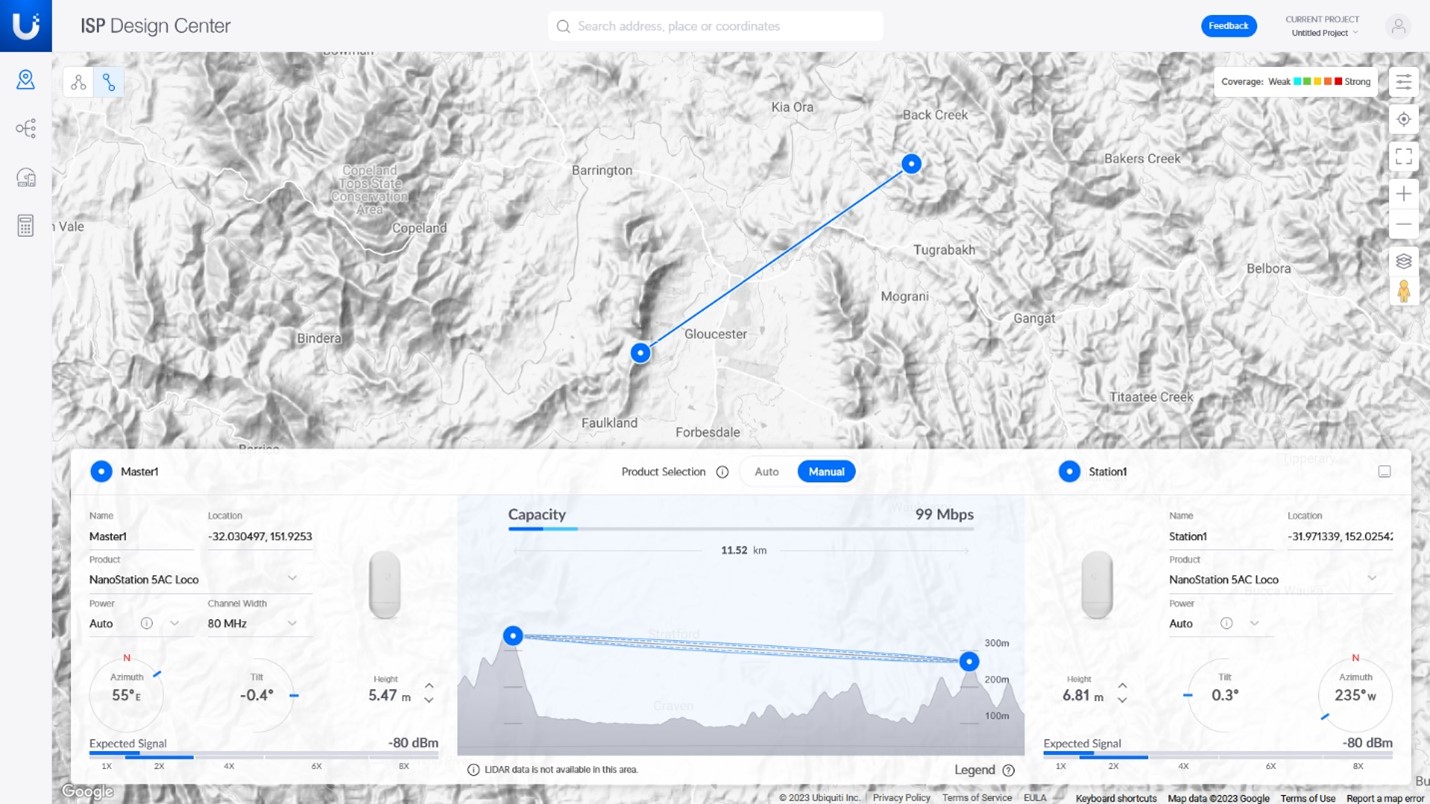
For Ubiquiti PtP and PtMP products you may check the link path and performance using the powerful Ubiquiti link calculator, see https://ispdesign.ui.com/#
Ubiquiti’s ‘ispdesign’ is applied to an 11.2Km link using Nanostation 5AC locos.
Note: A +23dBm transmitter coupled to a 13dBi antenna creates an EIRP of +36dBm.
Should you engage a professional, obtain a quote which details all work AND MOST IMPORTANTLY, the expected outcome e.g., link speeds, compliance etc. Ensure that the installer provides all necessary passwords and that the system operation is clearly explained. Ensure that a link budget is provided prior to demonstrate the performance.
What does a PtP link do?
A PTP link creates the wireless equivalent of a LAN cable connection. Think of the PtP wireless link as a long length of LAN cable. Security of a Wi-Fi P2P link is established using encryption techniques such as WPA2 to prevent unauthorized access.
There are many PtP link systems available. The systems identified below perform well, are readily available and are at the least cost end of the market. A PtP system with ‘up to 450Mbps throughput’ supports Starlink, nbn Fixed Wireless and most nbn fixed line services.
Ubiquiti AC PtP system – 13dBi compact antenna
A pair of Ubiquiti Nanostation Loco 5AC’s can provide a throughput of up to 450Mbps (225Mbps send + 225Mbps receive) at around 1Km. Given the modest antenna gain and power, this device readily meets the +36dBm EIRP regulatory requirements.
Ubiquiti ispdesign calculation for a 1Km link, identifying a throughput of 497Mbps
The Ubiquiti Nanostation Loco 5AC with perfect ‘line of sight’ may provide useful service at a distance of up to 10Km. At 11.3Km (see the Ubiquiti ispdesign example earlier), the transmit and receive throughput drops to ~50Mbps send and ~50Mbps receive.
See https://www.ip-com.com.cn/en/product/iLBE-5AC.html Another high gain antenna system with a throughput of 450Mbps. The iLBE-5AC uses a proprietary ipMAX IP-COM TDMA (Time Division Multiple Access) protocol. Cost for two is around A$250. The PoE power supply is included.
*Please note, while all care has been taken in compiling BIRRR documents, we recommend that you check with your service provider regarding your own connection issues.Thanks to John Kitchener, Chris Dowling & Tim Stockman for helping us with advice.
Are you experiencing dropouts or slow speeds with your internet connection ? The following programs/devices can assist you in monitoring your connection and provide valuable data for you to escalate with your RSP (provider).
PING PLOTTER
Ping Plotter is a great program that can record the dropouts for you, so you don’t have to manually record these for your provider. The program can also measure things such as packet loss, jitter and trace route. Whilst a test device that is plugged directly into your internet connection (LAN cable) is ideal, a Wi-Fi connection is also fine as long as the test device has a strong Wi-Fi signal. The device must also remain active for the period of the test.
NB: If you are troubleshooting with a nbn provider you must use Ping Plotter with a device that is directly connected into the nbn connection box (NTD/modem) via an ethernet cord/LAN cable.
For nbn Sky Muster connections: Adjust the expected latency to be 550-800ms
2. SAM KNOWS MONITORING WHITEBOX
The Australian Competition and Consumer Commission (ACCC) has launched the Measuring Broadband Australia program in order to better understand how Australians are experiencing internet performance in their homes. The program uses Sam Knows White boxes to record information about the quality of your connection, such as speed, packet loss, latency and drop outs. To sign up for a Sam Knows monitor via this link (please note satellite connections are not eligible). https://measuringbroadbandaustralia.com.au/
3. SPEEDTEST.NET
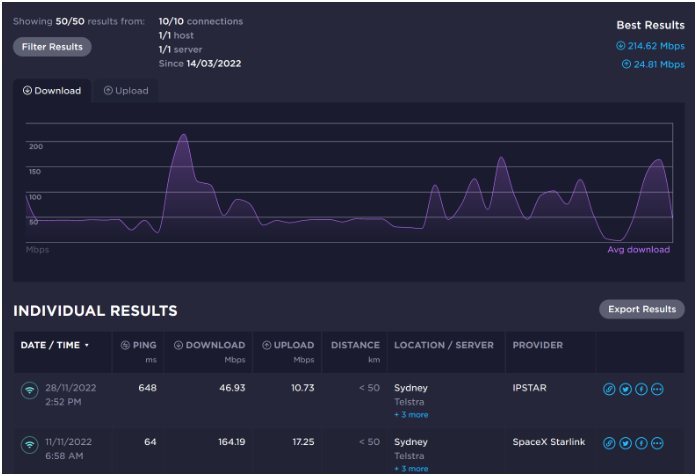
USE Speedtest.net to chart your speed results over time. Create an account and sign in to Speedtest.net to get started. Do several tests in the evening busy period and several tests at a less busy time
4. NetUptime Monitor
Continuously monitor your internet and local network connections in real time and view or print a detailed log of all failure length and times. Only compatible with windows computers.
NB: When setting up the monitor for nbn satellite connections, please ensure settings allow for the latency.
Please note the trial version of the net uptime monitor will run for 60 minutes then close, a license is required to remove this limitation. You can get a permanent license for a one time payment of just US$9.95.
NB: You should always follow the advice of your provider (RSP) when it comes to troubleshooting your connection.
BIRRR celebrates eight years of advocacy with a new handle, meet @betterbushcomms
IT’S TIME to stop bashing bush internet and instead focus on improving our connectivity, according to rural telecommunications advocacy group Better Internet for Rural, Regional and Remote Australia (BIRRR).
To celebrate its anniversary the independent, volunteer led organisation has chosen to update its social media handles from @fixbushinternet to @betterbushcomms reflecting the significant improvements made to regional communications infrastructure and services off the back of its continued advocacy.
BIRRR co-founder Kristy Sparrow said she was extremely proud of what the group had achieved over the last eight years.
“What began as a small group focussed on sharing experiences and information to help troubleshoot regional connectivity issues has evolved into a very successful advocacy group with a membership of over 14,000 people,” she said.
“In that time we’ve seen a step change in access to internet and telecommunications in the bush. I’m not saying there aren’t still potholes in the road, but sometimes you have to reflect on what’s been achieved.
“One of the biggest wins for the bush was the delivery and improvement of NBN’s wholesale Sky Muster Plus service, effectively providing unlimited data at good speeds for the majority of the day.
‘It was a game changer for our satellite users, and those who haven’t switched to Plus plans are missing out.”
Mrs Sparrow said she also applauded existing and new private alternative technologies, including wireless internet service providers (WISP) and low-earth-orbit offerings such as Starlink.
“Low Earth Orbit satellites are an emerging technology, which means there are teething issues, cost and some risk involved, but as more offerings come online we should see that market mature,” she said.
Mrs Sparrow said it was time to move away from furphies that you can’t connect in the bush, or that all communication issues boiled down to a need for more infrastructure.
“Frankly the people saying that don’t understand the challenges, or the scope of the problems,” she said.
“We coined the term ‘connectivity literacy’ to describe the issues we see again and again.
“It’s all the things a consumer needs to know to get connected and stay connected, from what technologies are available and how to choose one right through to troubleshooting a connection and where to get help.
“It’s important for all Australians but rural and remote consumers have suffered worse due to isolation, the tyranny of distance and a lack of easy to access support services.
“The Federal Government funding and handover of BIRRR’s troubleshooting services to the Regional Tech Hub was a great first step, and it has freed our volunteers up to concentrate on advocacy and education, a move reflected in our handle change.”
Mrs Sparrow said connectivity literacy differed from digital literacy and they were two separate skills.
“Issues with connectivity literacy could be choosing and installing equipment, how to pick a provider or plan, it’s the nuts and bolts of getting online, something the majority of people actually struggle with,” she said.
“Digital literacy is the ability to navigate various digital platforms and understand, assess and communicate through them. Digital literacy is your ability to use your connection.”
Mrs Sparrow said digital literacy had been well researched and defined, with barriers identified and targeted programs put in place to solve problems, while connective literacy had been overlooked.
“This is a significant barrier to adoption,” she said.
“From our experience it’s an issue across all demographics, a person being a digital native can still face significant hurdles when it comes to getting and staying connected in the home or business, there’s a default where we just want things to work.”
Mrs Sparrow said BIRRR still had a lot to do in terms of advocating for better bush communications.
“Connectivity illiteracy and a lack of a regional connectivity plan and framework has resulted in a patchwork quilt of regional technologies,” she said.
“Consumers, communities and local governments have not been supported or upskilled in getting and staying connected and understanding the intricacies of bush broadband connections.”
Mrs Sparrow said some of the barriers to regional consumers becoming connectivity literate included a lack of independent advice and an industry that was profit driven not result driven.
“There is a lot of misinformation and disinformation out there, and the narrative that bush broadband is bad doesn’t help,” she said.
“Getting connected or upgrading your connection can be confusing, it involves navigating the patchwork quilt and complex equipment, and there can be significant affordability issues.
“BIRRR will continue to work for better bush internet.”
BIRRR stock image attached. Suggested Caption: Rosie Alexander connecting from her family’s property in western Queensland. Photo is available for single use in print or for online story with photo credited to Lisa Alexander Photography, for alternative photos in this series please contact BIRRR.
For media enquiries please contact Kristy Sparrow 0429 853 482 birrraus@gmail.com
The team at Better Internet for Rural, Regional & Remote Australia (BIRRR) welcomes today’s announcement of a joint investment by the Australian Government and NBN Co into regional connectivity.
BIRRR has hailed the investment, which includes a range of key upgrades and enhancements to the nbn Fixed Wireless and Satellite networks in the regions, as ‘transformative’ for regional broadband users.
Co-Founder of the BIRRR group, Kristy Sparrow, said the investment should greatly improve bush broadband offerings, with the announcements coming as the result of eight years of volunteer advocacy to ensure regional Australians have access to affordable, reliable and adequate connectivity.
The proposal made by NBN Co today include a wide-range of enhancements and upgrades, including:
Enhancements to nbn Sky Muster Plus plans (beginning mid-2022) will see ‘Plus’ users able to have full use of their connection, without data limit constraint, from 12 midnight through to 4pm (offering an unlimited experience which includes VPN and video streaming that have previously been limited). Metered data allowances (VPN and video) will only be measured 4pm-midnight.
For regular nbn Sky Muster plans, nbn will double average monthly allowances on their ‘fair use’ policy from 45GB to 90GB. This will be made possible with busy satellite beams ‘deloaded’ by approximately 25,000 active satellite customers (who will be moved to nbn Fixed Wireless connections).
The nbn Fixed Wireless footprint will be extended (selected towers) from 14 to 29 km, creating a 50% bigger Fixed Wireless footprint reaching 720,000 residences (allowing an extra 120,000 addresses added to the nbn Fixed Wireless footprint).
Speeds will increase significantly on nbn co Fixed Wireless services – customers will see an increase to typical speeds (100mbps/20mbps) and an increase to typical busy hour speeds of at least 50Mbps. It is also anticipated that 85% of the footprint will be able to order speeds of up to 250mbps.
“The upgrades within the $750 million package will be transformative for regional Australians, ensuring they have access to broadband options that meet their needs now and into the future. Future-proofing connectivity in RRR areas by adopting and funding solutions that plan for future growth and investment in our regions will ensure that RRR regions are not disadvantaged due to their population and postcode.” Kristy said.
BIRRR’s data analyst, Dr Rachel Hay (James Cook University) said that some of BIRRR’s top advocacy ‘wish list’ items were an expansion of the nbn Fixed Wireless coverage footprint and an increase to upload speeds, as well as making more data available to satellite users during school and business hours.
“BIRRR submitted an extensive list of recommendations for improvements to regional connectivity in our 2021 Regional Telecommunications Review (RTIRC) submission and we are delighted to see some of our wishlist come to fruition.
“The upgrades to connectivity will enable scalable change across a range of regional sectors including business, agriculture, health and education, as well as supporting community growth and resilience,” Dr Hay stated.
Ms Sparrow described the changes as ‘exciting and much-needed’, particularly noting that nbn Sky Muster Plus users will be able to freely use their connections for the majority of the day for everything they need to do online, for the very first time since nbn Sky Muster was launched.
“We have been working with nbn co for a number of years towards further enhancements to their networks – I believe they have described our advocacy as ‘tenacious’,” she said. nbn co Chief Development Officer – Regional & Remote, Gavin Williams has credited the move towards these upgrades to the advocacy of passionate regional lobby groups, federal government funding and the nbn team of network engineers who will use 5G enabled technology to vastly extend the range, speed and capacity of its existing Fixed Wireless network. The upgrades will begin taking effect mid 2022 and are expected to be fully rolled out over the next two years.
“We look forward to these transformative upgrades and enhancements being rolled out as quickly as possible to provide much-needed access to better broadband in the bush. BIRRR would like to particularly thank the nbn local regional team for listening to our feedback and recommendations and to the Federal Government for their significant investment.”
Media Contact: Kristy Sparrow 0429853482 birrraus@gmail.com
*nbn co will use the funding to 5G-enable its network of more than 2,200 Fixed Wireless infrastructure sites and more than 22,000 cells in semi-rural areas and across regional and remote Australia. nbn will use the latest 5G technology to vastly extend the range, speed and capacity of its existing Fixed Wireless network, while reducing latency to deliver the best possible customer experience. (nbn media release, 22/3/22)
BIRRR Admin Amanda Salisbury and Kristy Sparrow pictured with BIRRR Data Analyst Dr. Rachel Hay at a regional connectivity announcement during Beef Week, 2021.
Ongoing updates can also be found on the nbn Twitter account @NBN_Australia. You do not need a Twitter account to access these updates.
NBN Co said it will provide financial relief for the benefit of end customers in communities in New South Wales and Queensland that have been affected by floods. The promise came as NBN Co calculated that around 112,000 services were affected by the floods as of yesterday. In a message to RSPs yesterday, NBN Co said: “We intend to provide funding direct to Retail Service Providers to support each of your respective Flood Relief Packages for end customers who experienced an outage of their NBN network service. We expect to provide the details of the financial relief funding in the coming days, including how RSPs can access the Flood Relief Funding and the ways in which it can be applied for your customers.” (Communications Day 4/3/2022 https://www.commsday.com/)
Severe weather affecting Queensland
5 March at 9.47am AEST
We continue to restore the nbn™ network across flood-affected areas of South East Queensland. Within the last two days, 107 sites and 7,818 services to homes and businesses have been recovered.
There are currently around 20,700 homes and businesses still affected by outages.
The current outages are primarily due to damage by floodwaters to nbn infrastructure. Areas predominantly affected continue to be in and around Brisbane, Gold Coast, Lockyer Valley, Moreton Bay, Maryborough and Gympie. nbn teams are working as fast as they can on repairs, but these are likely to go into next week.
The outage impacting Bribie Island due to a collapsed bridge has been resolved via a temporary fix. A permanent fix will begin in the coming weeks.
Where possible, people in affected areas are encouraged to check the nbn™ outages page regularly and with their retail provider for specific information.
We’ve been made aware by members of flood-impacted communities that some residents have received phone calls from scammers impersonating nbn and asking for funds to expedite the restoration of their service. Please be aware nbn will never contact customers asking for payment or any other financial information and we urge anyone who receives one of these calls to report it to Scamwatch immediately at http://www.scamwatch.gov.au
Due to the recent severe weather event, the number of homes and business impacted by outages on the nbn™ network across Northern NSW is currently around 81,000.
An outage in Woodburn, which is owned and operated by a third party, is impacting homes and businesses across Tweed Heads, Kingscliff, Currumbin Valley, Byron Bay, Brunswick Heads, Ballina, Lennox Head and Evans Head.
An initial assessment of the damage to the Woodburn site has indicated significant damage to the site and surrounding infrastructure. We are working with the third party provider today, to access the site and determine the damage, with a view to deploy a temporary solution next week, when safe access via road is expected to be available.
The remainder of customers impacted are around the Grafton and Lismore areas. Assessments to damage are currently being undertaken where it is safe to do so.
An nbn Sky Muster™ Truck and satellite FlyAway Kit have been deployed to the evacuation centre at the Ballina Coast School, which provides free wi-fi connectivity to the community via the nbn Sky Muster™ satellite service.
Where possible, people in affected areas are encouraged to check the nbn™ outages page regularly and with their retail provider for specific information.
We’ve been made aware by members of flood-impacted communities that some residents have received phone calls from scammers impersonating nbn and asking for funds to expedite the restoration of their service. Please be aware nbn will never contact customers asking for payment or any other financial information and we urge anyone who receives one of these calls to report it to Scamwatch immediately at http://www.scamwatch.gov.au
Amaysim’s response to the devastating floods includes free calls, texts, and bonus data for its customers for all of March. https://www.amaysim.com.au/help
During disasters such as bushfires, floods and cyclones, we try to proactively map customers’ addresses from available emergency services data and contact them to offer assistance.
We recognise that what works for one customer may not work for another, so our policy is designed to be flexible.
“Whilst several towers in the regions have been affected, our network remains resilient, and we are working hard to restore affected services as quickly as possible and to support our customers as well as our own team members impacted during this time.”
Optus has activated a range of initiatives as a result of the crisis, including:
Postpaid customers in affected areas will be provided up to 25GB of additional data to offset increased usage on eligible plans;
Prepaid customers in affected areas will be provided up to 25GB of additional data on eligible plans
Consumer and Business fixed internet customers will be eligible for a free interim service to keep them connected
Optus has also established a dedicated customer hotline for those affected by the severe weather (Ph: 1800 507 581). Customers can also connect via the My Optus App 24/7, which enables customers to message us directly.
No notice period required for cancellations at affected premises
30-days FREE when you’re back on your feet and ready to reconnect
FREE temporary redirects for your VOIP phone number Line rental and call costs still applicable
FREE relocation of your service to a new address *Must be serviceable by SkyMesh
Arrangement of payment plans if you’re experiencing financial hardship.
Telstra
Telstra assistance package for customers includes short-term measures such as call diversion, a 25GB data pack for postpaid mobile customers, and a 25GB data pack with free calls for prepaid customers.
In the longer term, Telstra said it will offer free call diversion from the customer’s Telstra fixed phone service to another Australian fixed or mobile service of their choice, regardless of the carrier; a one-off credit to the customer’s Telstra fixed phone account to cover the costs of connecting a Telstra fixed phone service at one temporary address; and re-connection of a Telstra fixed phone service at the customer’s original permanent address.
“We will also be allowing free use of the Telstra Air wi-fi network at locations where payphones are equipped to provide this”, Boisen told iTnews.
Payphones in the area are already able to make free local and national calls to standard fixed line numbers and free calls to standard Australian mobile numbers, after we made payphones free in August 2021. During this flooding situation, we will also be allowing free use of the Telstra Air Wi-Fi network at locations where payphones are equipped to provide this.
For customers who have been displaced from their residence or business during a natural disaster event, short-term assistance – click link for details.
8th December 2020 The Better Internet for Rural, Regional and Remote Australia (BIRRR) team today welcomed the launch of the new Regional Tech Hub (RTH). The newly created support hub will be launched by Minister for Regional Communications, Mark Coulton, National Farmers Federation (NFF) and Australian Communications Consumer Action Network (ACCAN).
Co-Founder and Chief Admin Kristy Sparrow, said that BIRRR has long advocated for the need for a specialist regional troubleshooting team to help with the vast array of connectivity issues often specific to living beyond urban areas. The new hub will take over the troubleshooting role BIRRR has (inadvertently) taken on over the past six years – in this time the volunteer team has helped thousands of people get (and stay) connected, has built an amazing community offering information and support, and achieved many improvements in regional communications.
BIRRR Chief Admin Kristy Sparrow said while services have improved since the group was founded in 2014, the need for this service remains strong throughout regional Australia. “We know many consumers still find telecommunications in the regions difficult to navigate. BIRRR has been working closely with the RTH to ensure our expertise and knowledge is passed on and that regional users can continue to access independent advice on getting connected and staying connected. We wish NFF, ACCAN, Jenna, Trent and Adam good luck and hope the hub can be as effective as the BIRRR team has been,” Kristy said.
BIRRR Co-Founder Kylie Stretton said their team will now focus its energies on working with stakeholders to ensure government, providers and nbn keep improving telecommunications, policy and funding available to regional areas. “BIRRR will continue to lobby for #betterbushcomms and our Facebook group and website will still exist, however all troubleshooting will now be sent directly to the RTH,” she said. “We are very keen to get back to the core reason we formed BIRRR – to focus more on advocacy and ensure that funding reflects the needs of regional users.”
Kristy added that, “BIRRR’s successful advocacy could not have been possible without the assistance of many individuals and organisations who have contributed their time and funding over the years, and BIRRR would like to thank them for their support.” “To our incredible admin team – Kylie, Kristen, Amanda, Julie and Claire, your dedication, patience and passion has been invaluable. We have demonstrated how respectful, knowledgeable lobbying can influence and make an impact on regional issues.”
Australians in regional and remote areas who need practical advice on getting connected and staying connected are encouraged to visit the Regional Tech Hub website at regionaltechhub.org.au or contact the Hub’s enquiry hotline on: 1300 081 029
Media Contact: Kristy Sparrow 0429853482 birrraus@gmail.com
BIRRR TEAM in Canberra advocating for a Digital Tech Hub Kristy Sparrow (Alpha QLD), Kylie Stretton (Charters Towers, QLD), Kristen Coggan (Condamine, QLD) Julie Stott (Oberon, NSW) & Amanda Salisbury (Monto, QLD)
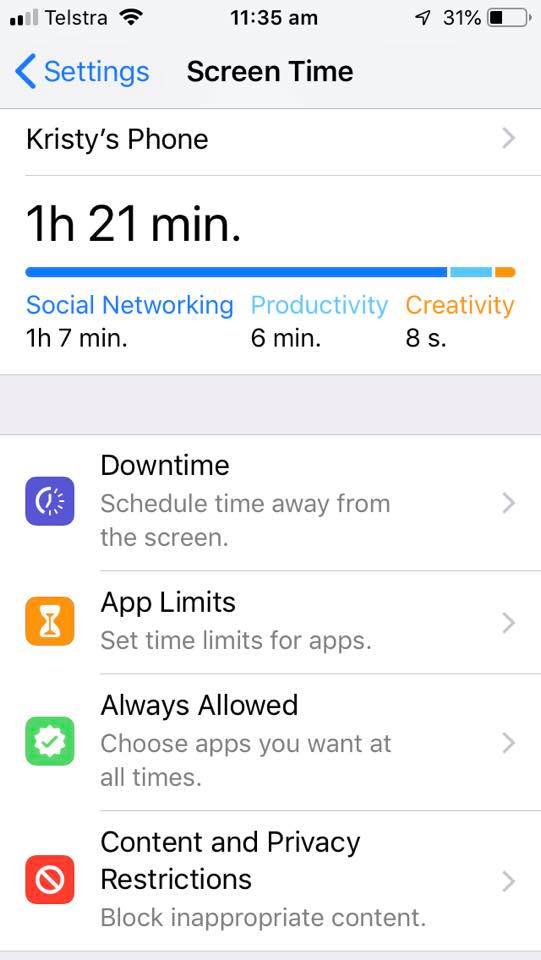
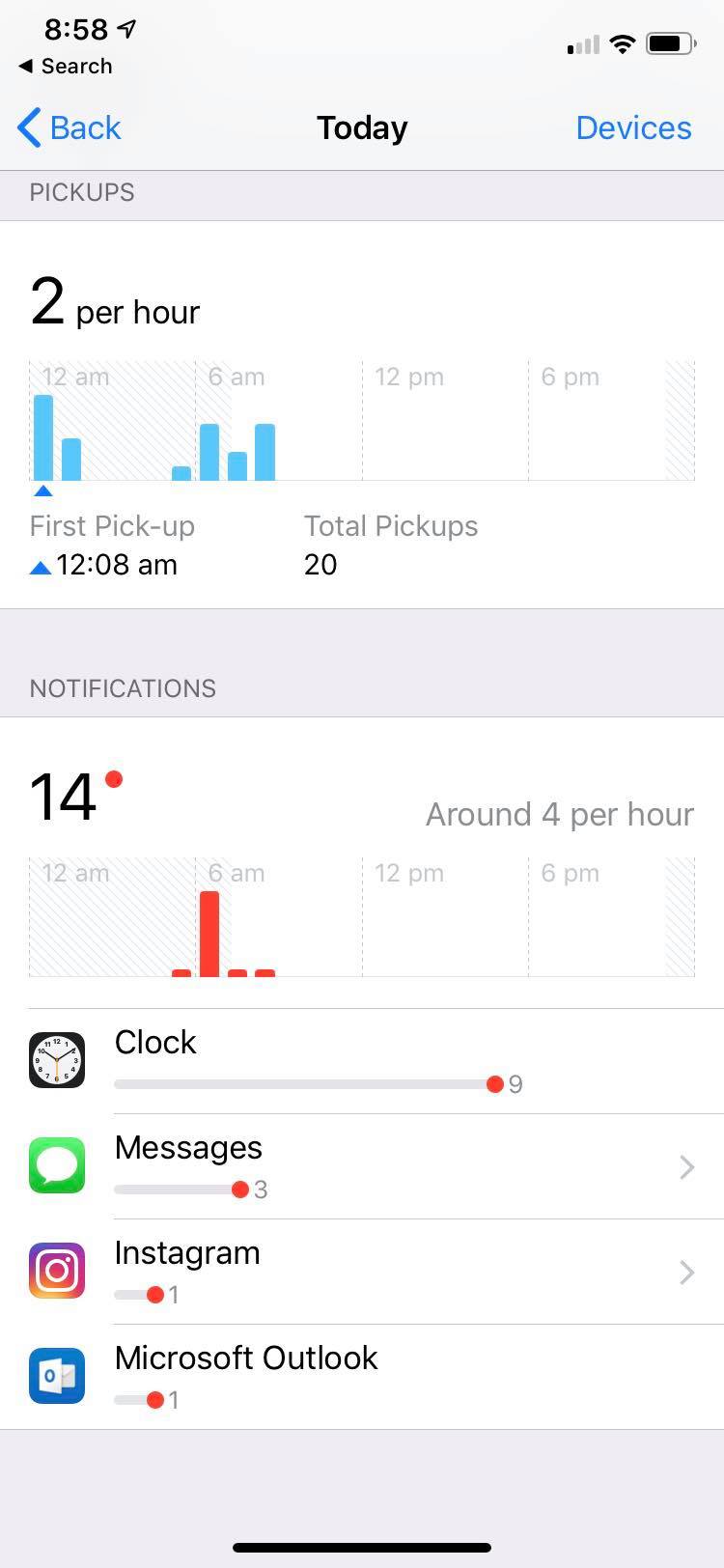
With the Apple Screen Time feature, you can access real-time reports about how much time you spend on your iDevice and set limits for what you want to manage. With Content & Privacy Restrictions in Screen Time, you can block or limit specific apps and features on yours and your child’s device, as well as restricting the settings on iPhone, iPad, or iPod touch for explicit content, purchases and downloads, and privacy. iDevices need to have iOS 12 installed.
How to turn on screen time
On your device, go to Settings > Screen Time.
Tap Turn On Screen Time.
Tap Continue.
Select This is My [device] or This is My Child’s [device].
How to use screen time features
Once Screen Time is turned on, on each device you can get a report about how you use your device, apps, and websites, any time you want.
If it’s your child’s device, you can set up Screen Time and create settings on their device or you can use Family Sharing to configure your child’s device from your own device. After you set up your child’s device, you can also use Family Sharing to view reports and adjust settings any time, right from your own device.
With Screen Time you can also create a dedicated passcode to secure settings, so only you can extend time or make changes. Make sure to choose a passcode that’s different from the passcode you use to unlock your device. To change or turn off the passcode on your child’s device, tap Settings > Screen Time > [your child’s name]. Then tap Change Screen Time Passcode or Turn Off Screen Time Passcode, and authenticate the change with Face ID, Touch ID, or your device passcode.
View your report and set limits
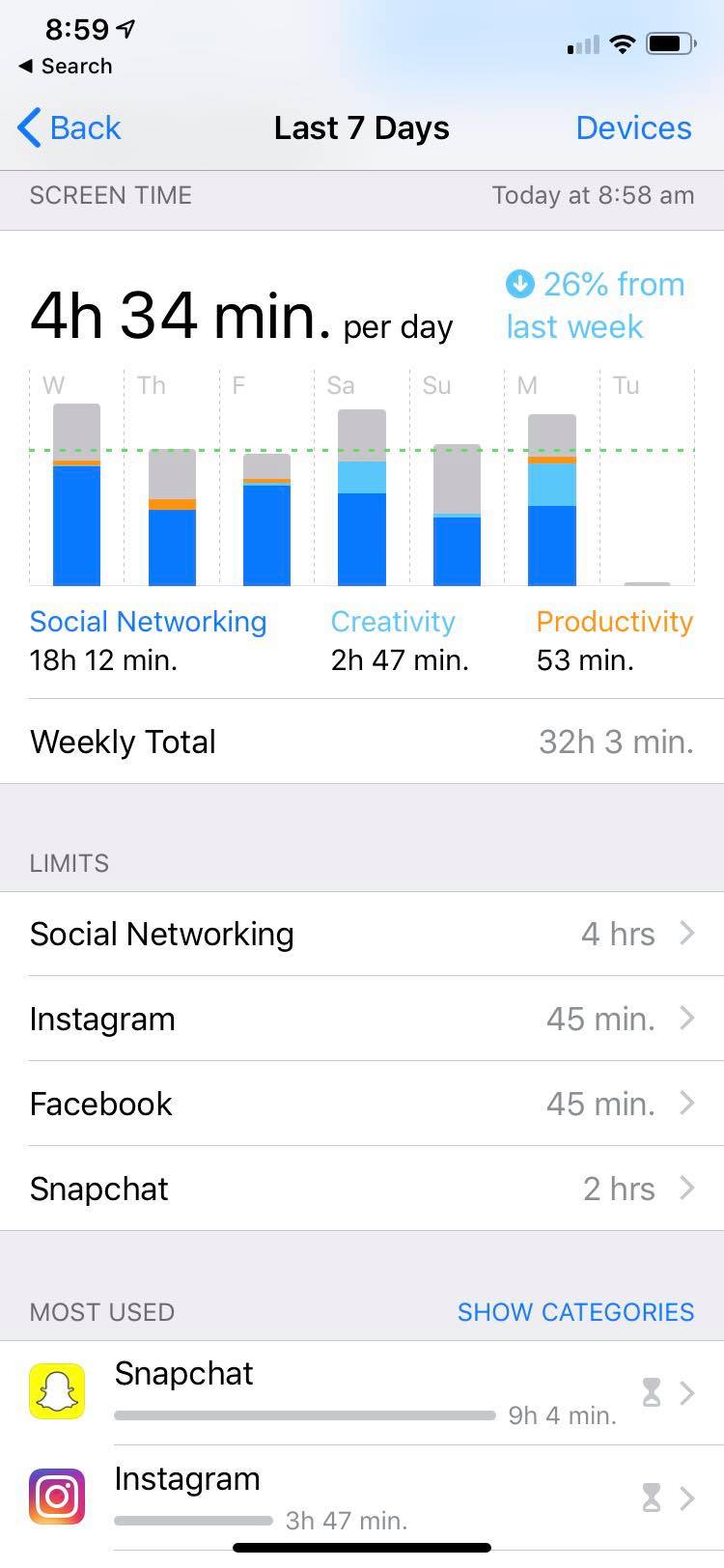
Screen Time gives you a detailed report about how your device is used, apps you’ve opened, and websites you’ve visited, any time that you want to see it. Just go to Settings > Screen Time, select the device and tap the blue line under the time to show the graph. You can see daily or weekly stats on screen time usage. You can also set limits for your most used apps, and see how many times a device was picked up or received a notification. If you turned on Share Across Devices, you can view overall usage across devices that are signed in with your Apple ID and password. The report feature also allows you to see when the phone is being used, how long is being spent on each app/site and how many pick ups and notifications the device gets.
Downtime
When you schedule Downtime in Settings, only phone calls and apps that you choose to allow are available. Downtime applies to all of your Screen Time-enabled devices, and you get a reminder five minutes before it starts. You can set a specific downtime for each device and also select certain apps that are excluded from the downtime (such as messages, calls, maps etc). Phone, Messages, FaceTime, and Maps are Always Allowed by default, but you can remove them if you want.
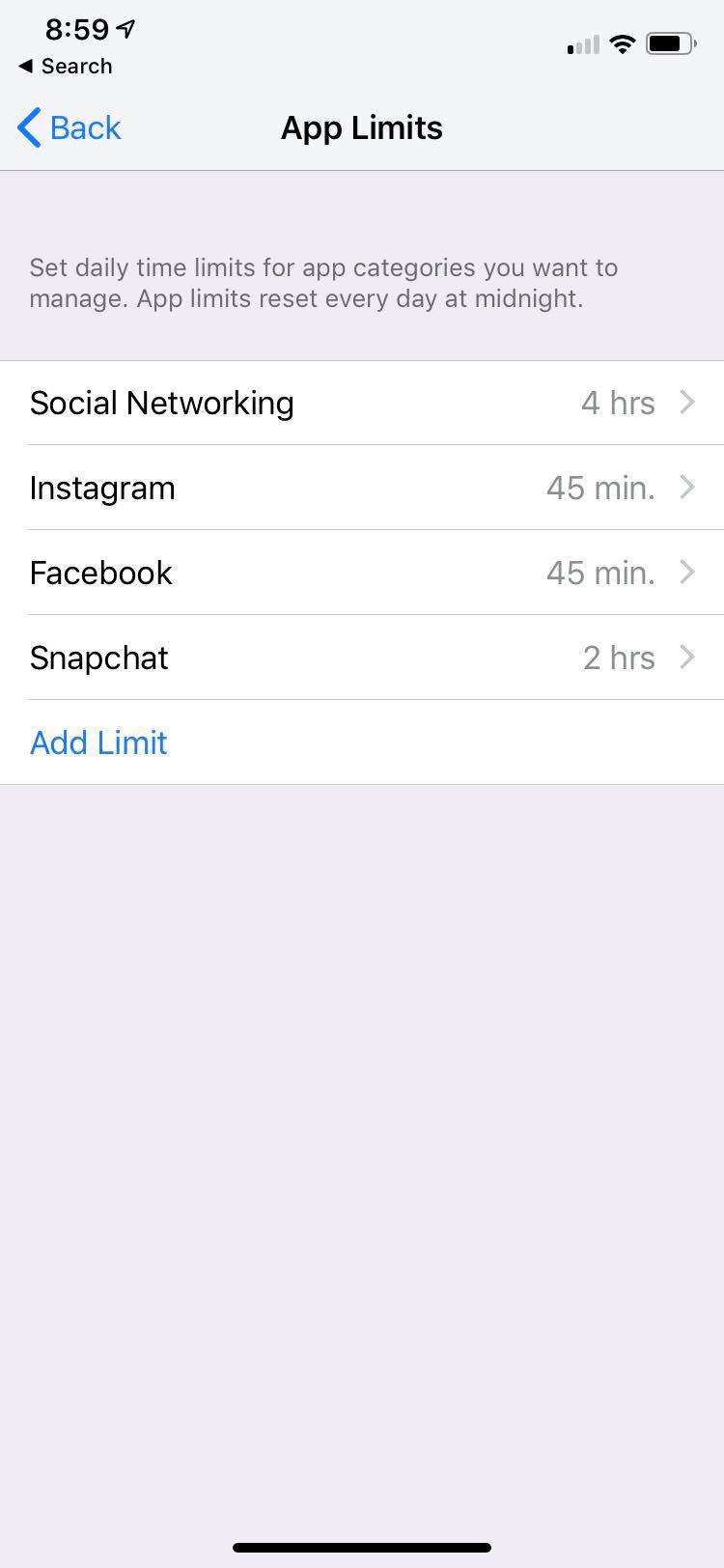
App Limits You can set daily limits for app categories with App Limits. For example, you might want to set a limit on social media during exam block or while you are at work. Limits refresh every day at midnight, and you can delete them any time. Your child can also request ‘extra time’ if they go above the set limit on an app. Select the device you want to add a limit too and click on Add Limit, select the app and a time you want the device limited to.
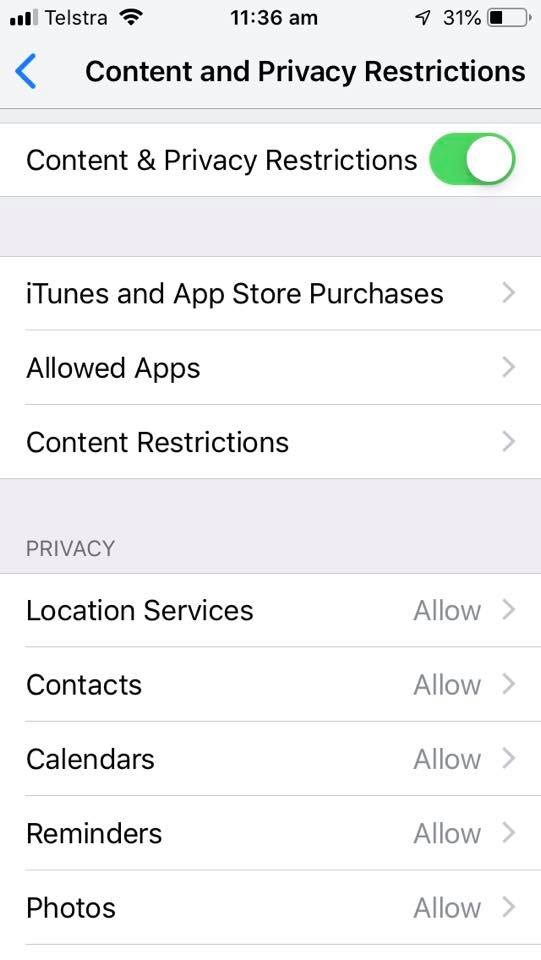
Content & Privacy Restrictions You decide the type of content that appears on your device. Block inappropriate content, purchases, and downloads, and set your privacy settings with Content & Privacy Restrictions. You can block explicit movies & music, multiplayer games and certain web content, if you scroll down you can even block specific websites.
Do Not Disturb
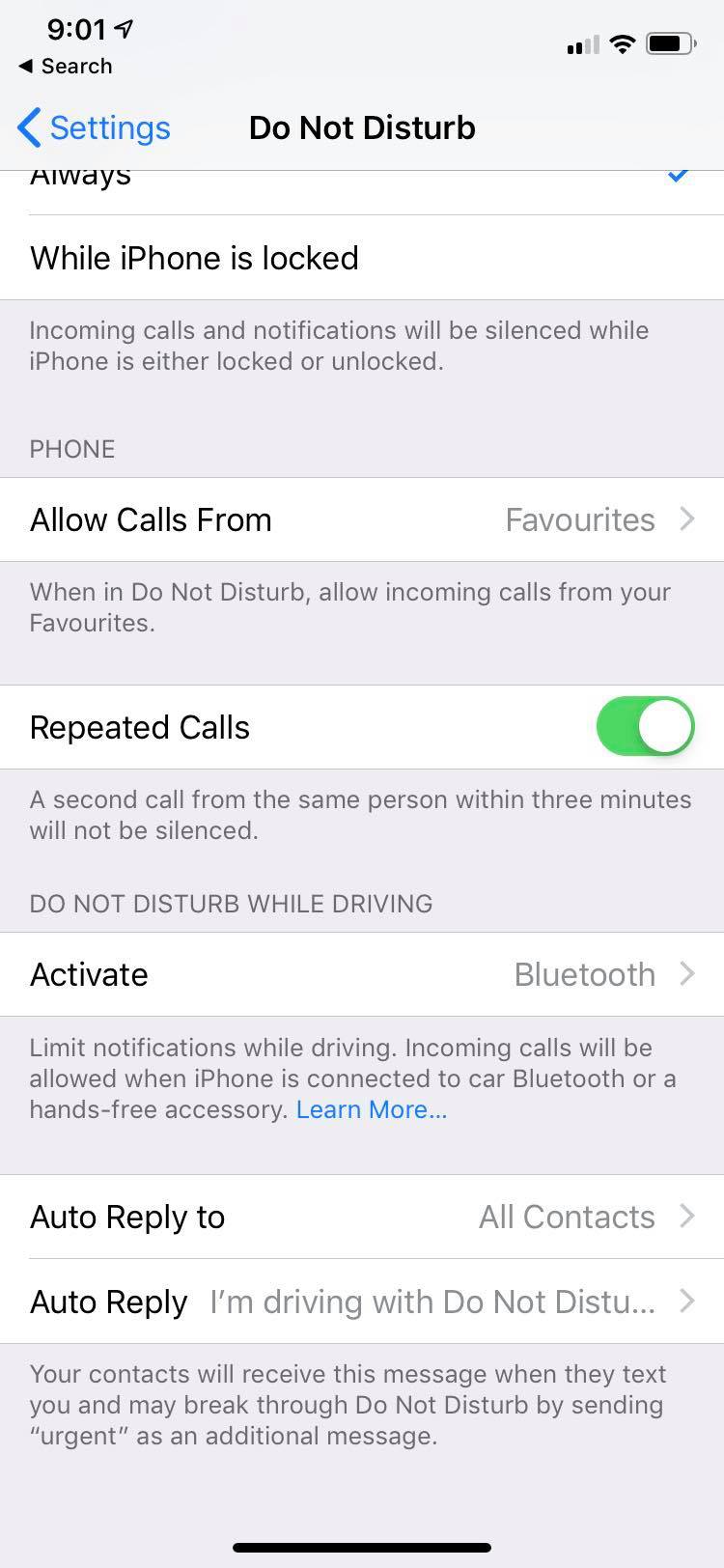
Just above Screen Time in settings is a feature called Do Not Disturb. This has a fabulous feature that limits notifications while you are driving. You can set this up to text contacts with a message saying you are driving and will call when you reach your destination.
Use Screen Time with your family
With Family Sharing, you can share music, movies, apps, and more with family — and it also works with Screen Time. You can view reports and adjust settings for children in your family any time, right from your device. If you’re already in a family group, go to Settings > Screen Time, and tap your child’s name. If you need to create an Apple ID for your child, go to Settings > [your name] > Family Sharing > Screen Time.
Or if you’re new to Family Sharing, tap Set up Screen Time for Family and follow the instructions to add a child and set up your family. You can add family members any time from Family Sharing settings. To use Screen Time with Family Sharing, you need to be the family organizer or parent/guardian in your family group, on iOS 12. Your child must be under age 18, in your family group with their own Apple ID, and on iOS 12.
Disclaimer: BIRRR are not specialists in this area, this is just one tool you can use to manage yours and your child’s device. BIRRR encourages you to read widely on this topic if you have primary or secondary age children and reminds parents that many social media platforms require children to be at least 13 years of age.
Thanks to Apple Support for instructions on Screen Time Features
The Regional Tech Hub have the latest information here
What to check when the installer comes
The following are some notes regarding nbn Fixed Wireless non – standard installations.
Please remember that each non-standard install is assessed on a case-by-case basis by nbn, nbn are currently reviewing their non standard install protocols. Current protocols can be found here under Non Standard Install Processes. Some of the non-standard installs pictured on the BIRRR website may no longer be approved by nbn.
In the event that the ‘standard installation’ procedure fails, the next steps are:
Check that the installer has tried to get a strong enough signal on all areas of the roof of the main residence or the premises/ shelter where you wish the nbn equipment to be installed.
Ask if the installer has checked in all directions, in the case that there may be other local nbn sites. If the answer is no, please request this or discuss it with the installer.
Ask the installer if there is any other location on your property where the signal may be strong enough to connect.
Ask if the installer has tried a 3 metre mount to get a stronger signal at the locations. If the installer does not have a 3 metre mount, please request that they return and try again with a 3 metre mount. You may need to make a new appointment with your service provider for this as well. Note: A 3m mount can only be installed on tin rooves with a pitch of <30°
Indicate whether you are prepared to take other steps (at your own expense) to get a service. Make sure you have approval from nbn before carrying out any work for a non standard installation. For example:
Build a shelter specifically to house the equipment and then relay the data to your main location / homestead. Note: A wireless relay of the data will be required, if the total cable length from Outdoor Unit (ODU) to Indoor Unit (IDU) run is greater than 100m. See note below regarding Wireless Relays. nbn currently mandate a 240v supply for the fixed wireless NTD. The nbn wireless NTD consumes 25 watts. nbn are looking into other power supply options for rural users.
Dig a trench to take cable from one building where signal is sufficient, back to the main location on your property. It must be trenched and the cable run through White Communications Conduit. The maximum cable run between the outdoor unit and the indoor unit that nbn provides is 70m (Category 5 cable) or 100m (Category 6 cable).
Install a tower / pole to install the equipment on. Note: The installer needs to accurately identify the location with photos, latitude/longitude etc, plus height of ODU to achieve a suitable signal.
Use a cherry picker or similar equipment to provide access to the location where the installation might be achieved.
6. Ask if the installer has any advice for how to get a sufficiently strong signal anywhere on your property
7. Ask if the installer knows whether your neighbours have an installed service and, if so, what the difference is between your location and theirs.
8. Specifically ask the installer not to log the job as a Service Qualification failure, but to log it as a non-standard installation if they are not able to complete a non-standard installation appointment on the day.
9. If all efforts on the day still do not work, you will need to call your service provider to arrange a new non-standard appointment. It is important that you are clear with the service provider that you need an appointment for a non-standard installation.
10. In the event that all installation attempts fail, you may be able to access a neighbour’s nbn service. If applicable, you may wish to approach your neighbours and ask if they are willing to allow you to order a second service, at your expense to their location. nbn Fixed Wireless supports up to four (4) separate services to one set of installed equipment. If that is OK with you and your neighbour, you may then be able to relay the service to your own residence via a wireless link. There is commercially available equipment that operates wirelessly and may be able to relay the nbn service to your location, provided your neighbours are willing. nbn does not provide this equipment and is not able to guarantee the results.
11. It is also possible to get a second NTD installed at another location / property in the case that this is needed (for example if the four data ports on the installed equipment are being used or your neighbour would prefer not to have your equipment located in the same place as theirs). This can be done by asking your service provider to get a second location ID assigned to a location / premises so that the nbn equipment can be installed
12. Installers are sub-contractors to nbn and may be of varied experience. The majority of the installers are seasoned professional contractors and take this role very seriously. If you believe that you are not getting a professional experience or that the installer does not present themselves in an acceptable way, please let your service provider know so that nbn can track and improve installer behaviour and the installation experience. nbn manage the performance of the installers and are always keen to hear when there are issues so they can help to identify and improve poor experiences and poor behaviour. nbn instructions are to always do everything installers can to help an end user get the Fixed Wireless service, if possible.
WIRELESS RELAYS
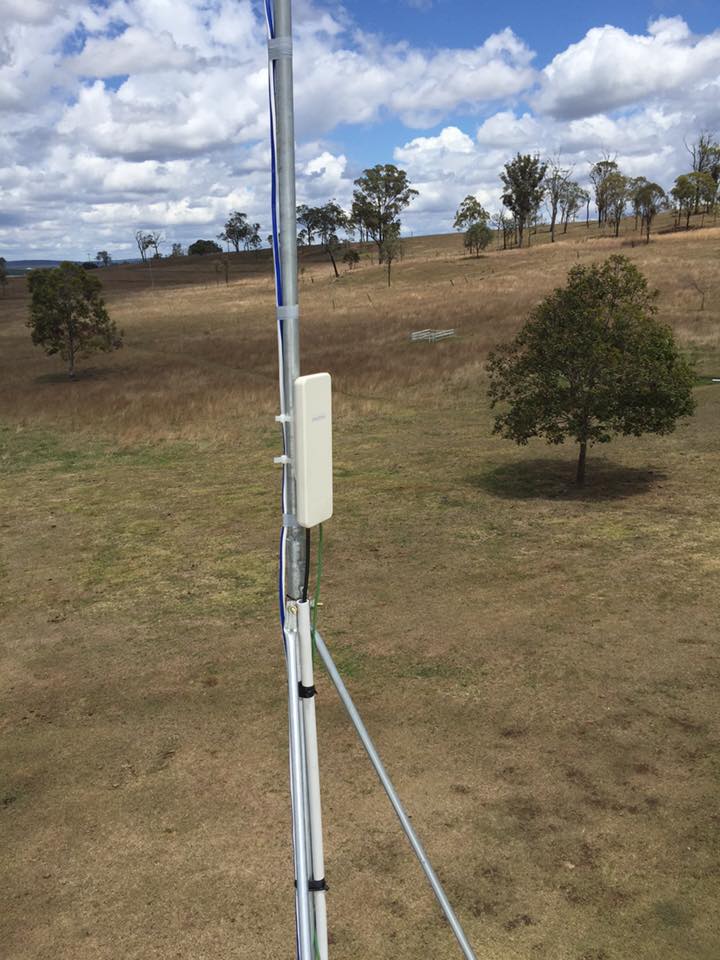
A wireless gateway or bridge can span up to 50km with direct line of sight. The gateways can be set up before being sent out. Then all the customer has to do is find a good location for antenna and run some cable to power point (240 volt power must be supplied) and turn the unit on. If it’s under 200 to 400 meters you only need one if its over 400 meters then it is recommended to use two, one as an access point and the other as a station. Wireless Gateways are generally under $300 per unit. A wireless relay can be supplied and installed by telecommunications specialists, or they or can be shipped out with full instructions so people with a bit a knowledge and handy man skill can do the install themselves.
Fixed Wireless Gateway
For more information on Wireless Relays Contact your nearest installer / technician from the BIRRR list here or from Telco Antennas
PLEASE NOTE: If the non-standard fixed wireless service has trouble after installation and needs repairs or fine tuning, installers must be SAFELY able to access the location. The means to achieve this must be borne by the customer.
Useful BIRRR Fact Sheets for Non Standard Installations:
*Please note, while all care has been taken in compiling BIRRR documents, we recommend that you check with nbn or your ISP regarding your own connection issues. Thanks to nbn for assistance in compiling this document. Information has been obtained from nbn, Skymesh, Whirlpool forumsand BIRRR members.
If you are having an issue with your connection, you may be experiencing a network outage. If your connection is an nbn connection, you could have a provider outage or an nbn outage, you will need to check both.
nbn Outages
Contact nbn – nbn have an outages pages which lists an outage if it is happening and also alerts you to any upcoming planned maintenance happening in your area. Click here or Phone 1800 OUR NBN to see if there are any widespread outages.
If there are no outages listed on the nbn outages page you will need to contact your service provider, as there may be a problem with your connection. Some things to try first:
Have you checked that your router isn’t the problem?
Have you done a complete power cycle – turn everything off, leave off for a couple of minutes, then turn back on in order, starting with the NBN box.
Tips for improving connectivity while works are underway.
Customers can continue to make calls and send texts during disruption to mobile services by switching on Wi-Fi Calling. This is a free setting on most popular mobile phones and allows your mobile to make and receive mobile calls while connected to Wi-Fi.
We also encourage business owners talk to their bank about connecting their EFTPOS terminals to their NBN or Wi-Fi connection to prevent delays in processing transactions.
Alternative Providers
Alternative providers like WISPs or alternative fibre/cable connection, you will need to contact your service provider.
Qantas to sign trial satellite product with NBN for Wi-Fi http://blog.jxeeno.com/qantas-sign-trial-satellite-product-nbn-wi-fi/
The company responsible for building the National Broadband Network, nbn, has released its test agreement with Qantas allowing them to test a “Proof-of-Concept Aeronautical Mobile Satellite Service” on a Qantas test aircraft. The proof-of-concept test is expected to help guide the development of nbn’s Satellite Mobility Product expected to launch in the third quarter of 2017.
As part of the trial, the network speed will be limited to 20 megabits per second for each aircraft on at most two aircraftsconcurrently. The connection will also be limited to agreed flight corridors.
Trial of a Proof-of-Concept Aeronautical Mobile Satellite Service http://www.nbnco.com.au/content/dam/nbnco2/documents/sfaa-test-description-POC-aeronautical_20170116.pdf.pdf
The purpose of the PoC Trial is to enable NBN Co and Test Participant to assess the functionality and performance of a proof-of-concept aeronautical mobile satellite service (the Mobility PoC Test Product) on Test Aircraft operated by Qantas Airways Limited (ABN 16 009 661 901)
Detailed analysis: How will Qantas’ on-board Wi-Fi impact NBN satellites? http://blog.jxeeno.com/detailed-analysis-will-qantas-board-wi-fi-impact-nbn-satellites/
With under 350 flights spread out geographically and over a 24 hour period, I doubt the planes would have a material effect on congestion. Currently, the worst case scenario seems to be up 6-7 planes flying under a single beam at any given time. However, in the case of the 7-plane statistic, it happens only once in a 24 hour period. The speed at which planes travel also mean that they will typically fly in and out of narrow beams within 10-15 minutes, meaning any impact should be distributed across multiple beams as the plane flies through the airspace.
Diagram showing NBN Co satellite beams and risk of congestion as determined in the Fixed Wireless/Satellite Strategic Review (FWSat SR).
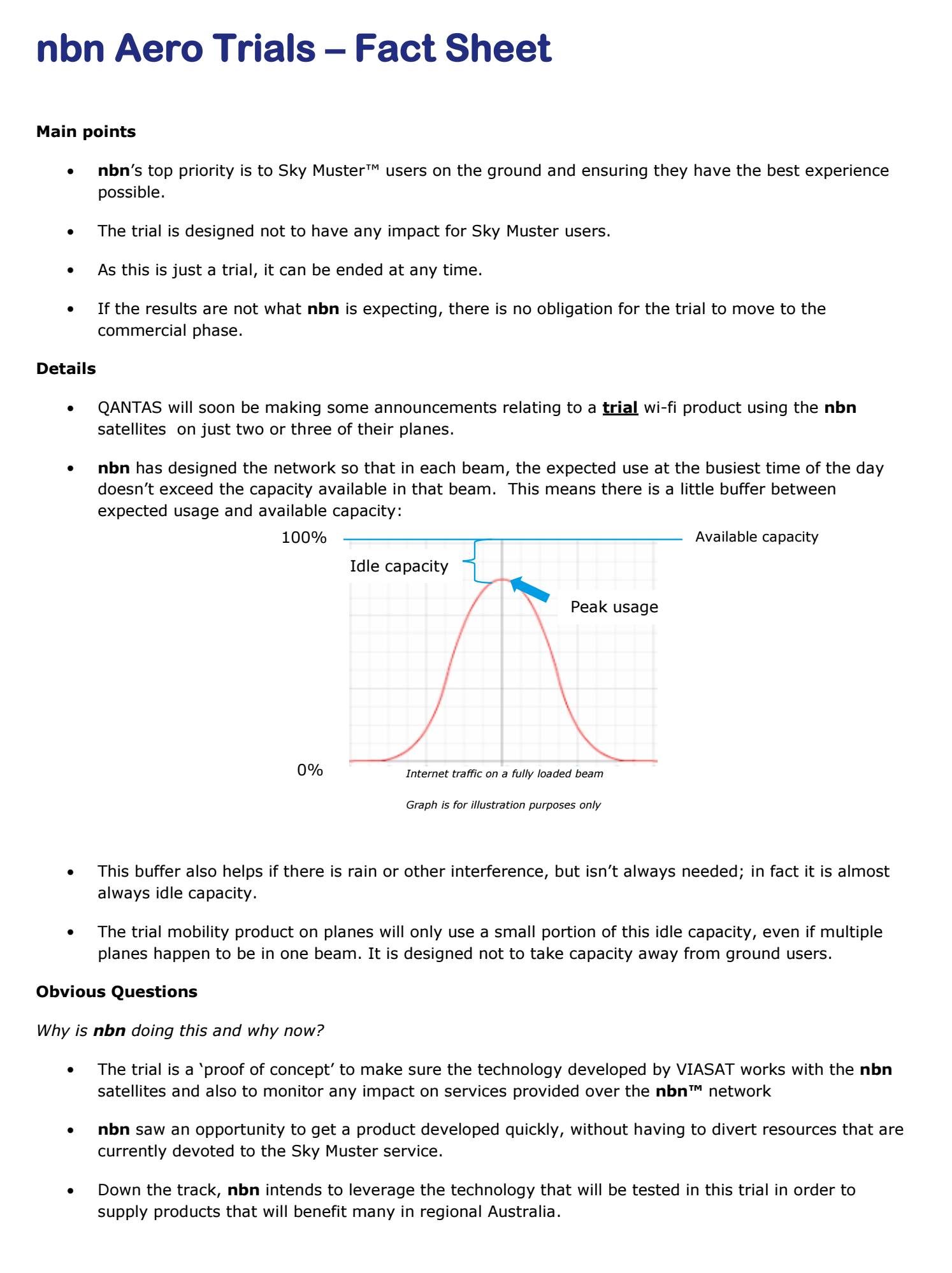
Mr Morrow : It is not an allocation of data that we would offer for aviation-based services. It is only the use of idle capacity when it is sitting there not being used at all. Our intent is that the priority services are for the ground-based homes and businesses that are targeted with satellite. If they are using all the capacity and a plane flies through that beam, the plane does not get any sort of internet connectivity. If, however, there is available and idle capacity, the plane can download or upload, depending.
The death of in-flight entertainment? American Airlines scraps screens and tells fliers to bring their own. http://www.telegraph.co.uk/travel/news/is-this-the-death-of-the-seat-back-entertainment-screen/
The world’s largest carrier said it decided to ditch seat-back monitors on its new Boeing 737 Max aircraft – intended for domestic routes in the US – because most passengers travel with mobile phones, laptops and tablets. Instead of investing in screens it will upgrade in-flight internet speed, to ensure passengers can browse the web and stream movies quickly.
Qantas’ In-Flight Wi-Fi Seems To Be Up To The Challenge https://www.gizmodo.com.au/2017/02/qantas-in-flight-wi-fi-seems-to-be-up-to-the-challenge/
The service uses NBN’s Sky Muster satellites, and the carrier says it’ll be around 10 times faster than inflight Wi-Fi already in place on other domestic airlines around the globe like Delta in the US. The full fleet of 80 Qantas 737s and A330s will get in-flight Wi-Fi some time throughout 2018.
Qantas expects around 50 per cent of passengers to be using its inflight Wi-Fi and internet service during regular flights.
Every Major Airline’s Wifi Service, Explained and Ranked (in the USA) http://gizmodo.com/every-major-airlines-wifi-service-explained-and-ranked-1701017977 Here are details from the 9 major US airlines that offer wifi. (This list is specific to domestic flights; if you’re flying internationally, the check-the-website rule applies even more fiercely because international fleets carry different gear than domestic fleets. If an airline has good in-flight wifi on domestic routes, though, they’re probably good for international routes as well.) Three things were taken into account when making this list: the likelihood that your plane would actually have wifi; the type of equipment powering the wifi; and its relative dependability, speed, and value.

 Tip: Save the screenshots in a document. Include your address and coordinates for future reference.

 Assess Your Current Antenna/s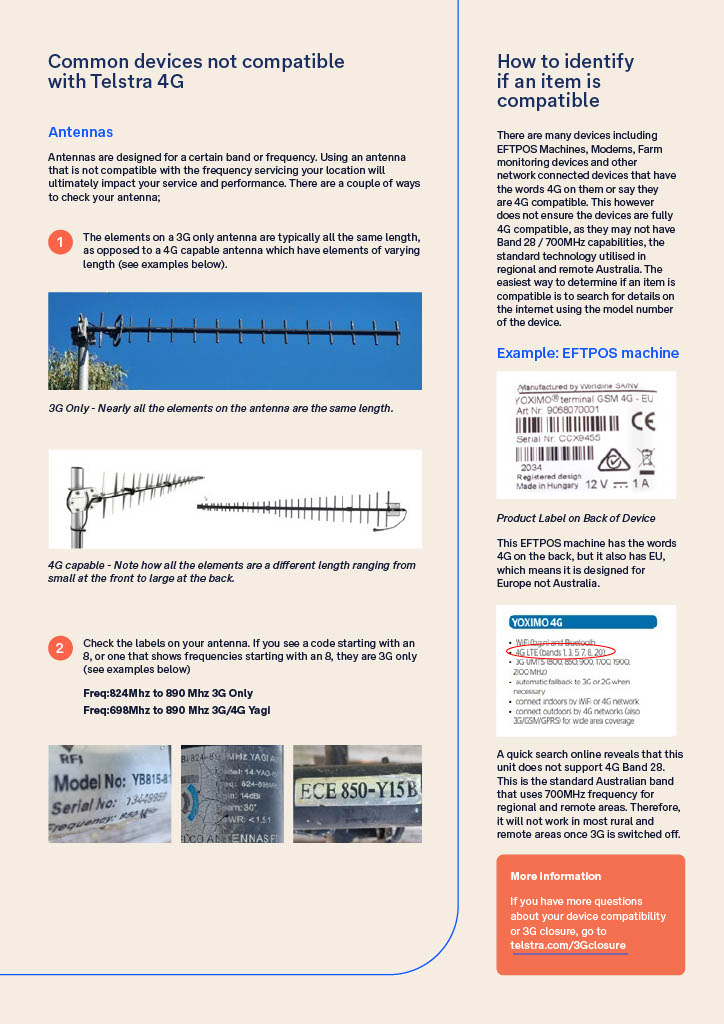

 Replace incompatible antennas and cabling
 Take photos & note antenna position
 and won’t
  work on 4G networks.




















 Better Internet for Rural, Regional & Remote Australia (BIRRR)