BIRRR is aware of large numbers of complaints from our members regarding mobile issues since the 3G shutdown. These tips below have been designed to assist with helping you escalate these problems with your mobile provider, as well as things you can check to see if your experience can be improved.
Your mobile experience can be affected by a range of factors, such as the device you are using to access the tower, your distance from a tower, any external antenna in use, how many devices are connected to the tower at a given time and any obstructions such as terrain, buildings or vegetation that may block the mobile signal. If your issues relate to the migration of your 3G landline (NGWL) to Telstra’s 4G Fixed Wireless (4GFW) or Starlink Satellite system you can find more information here.
Coverage Maps
There are three mobile carriers in Australia –
- Find your coordinates (when using the Telstra or Vodafone maps) – this is important as the coverage maps don’t have a lot of landmarks. How to find your coordinates: http://www.birrraus.com/2016/04/23/how-to-find-your-latitude-and-longitude-using-google-maps/
- note which carrier you are using and navigate to their coverage map.
- Optus: www.optus.com.au/living-network/coverage
- Telstra: www.telstra.com.au/coverage-networks/our-coverage – note the step by step details below as Telstra’s coverage maps need some guidance.
- Vodafone: www.vodafone.com.au/network/coverage-checker
Instructions for using the Telstra Coverage Map
- Enter your coordinates or address in the search bar, then click “Search.”
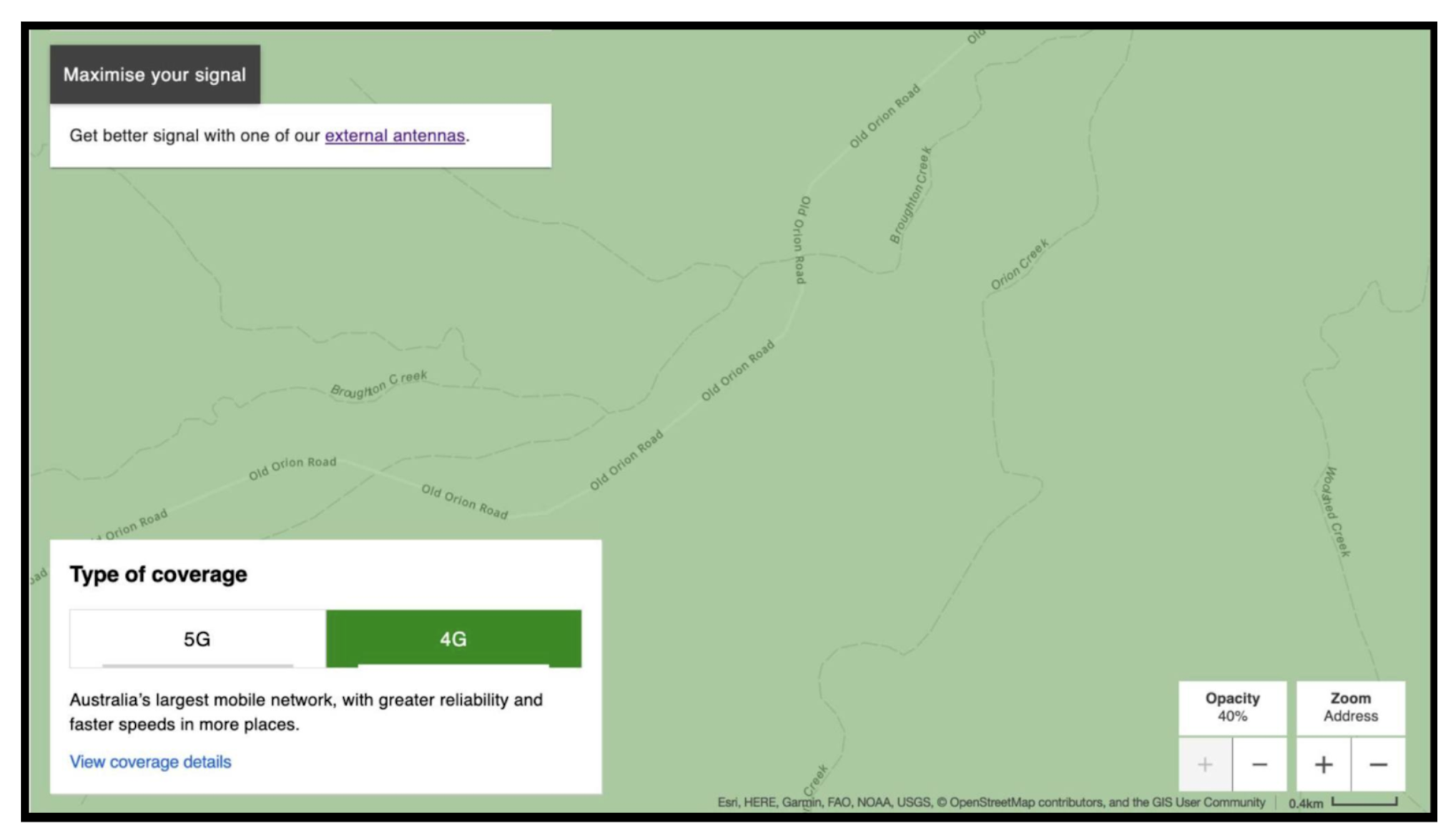
- You’ll see a map showing coverage at your location. Look for handheld coverage – it’s green for 4G and purple for 5G, white means NO HANDHELD COVERAGE. Take a screenshot of the image (handheld coverage).
- Zoom out (click the “minus” button) and select “Maximise Your Signal” to check for antenna coverage. Take a screenshot of the image (antenna coverage). NB: Once you zoom out the marker disappears, but your location usually stays in the middle of the map.


Important: Triple Zero Impacted Devices
From 28 October 2024, mobile carriers are legally required to prevent mobile phones that cannot call emergency services (including Triple Zero) from accessing the mobile network. This includes older 3G handsets, as well as some 4G/5G handsets. If your device is blocked, you will not be able to use that handset for voice or data. More information here
Signal bars & coverage equivalence
Since the 3G Shutdown you may have noticed changes to the signal bars on your phone. Telstra have stated that it is important to note that fewer bars does not mean you are receiving a lesser service.
Signal bars differ between technologies and mobile devices, therefore they are not always a good indicator of coverage and performance. Almost every device is different when it comes to this as there are currently no standards uniformly shared across all manufacturers. Comparing bar readings between different devices could be like comparing apples to oranges.
Similarly, when it comes to different technologies there is no direct correlation between bars and user experience on one technology compared to another. As you can see in the picture, Telstra has measured the same device in the same location – the only difference being whether it was on the 3G or 4G network. The left results show 3G receiving higher bars, but a far lesser overall experience in both download and upload speeds compared to the 4G service on the right.

Because 4G is a newer, more efficient technology it is essentially meaningless to compare signal bars between what it delivers and what 3G delivers. More information here.
Antennas
Mobile antennas are designed for a certain band or frequency. You may receive bars of coverage on your mobile phone, but calls may cut out, be poor quality and data upload and download speeds degraded if you are using an incompatible antenna which is not on the right frequency in your location.
IMPORTANT NOTE: Older 3G-only (850Mhz) antennas may falsely appear to provide a useful signal, however replacement with a quality 4G compatible antenna is critical for a reliable service. Both Telstra and installers have advised that replacing Cel-Fi antennas is critical to maintaining a connection.
Please note this information can be complex, BIRRR recommends that you seek professional advice for antenna selection and installation.

Follow these steps to check your fixed home / business antennas:
- 3G has now been switched off so antennas that worked on 3G may now be incompatible. The elements on a 3G-only antenna are typically all the same length, whereas a 4G-capable antenna has elements of varying length. (see image below)
- The elements on a 3G-only antenna are typically all the same length, whereas a 4G-capable antenna has elements of varying length.
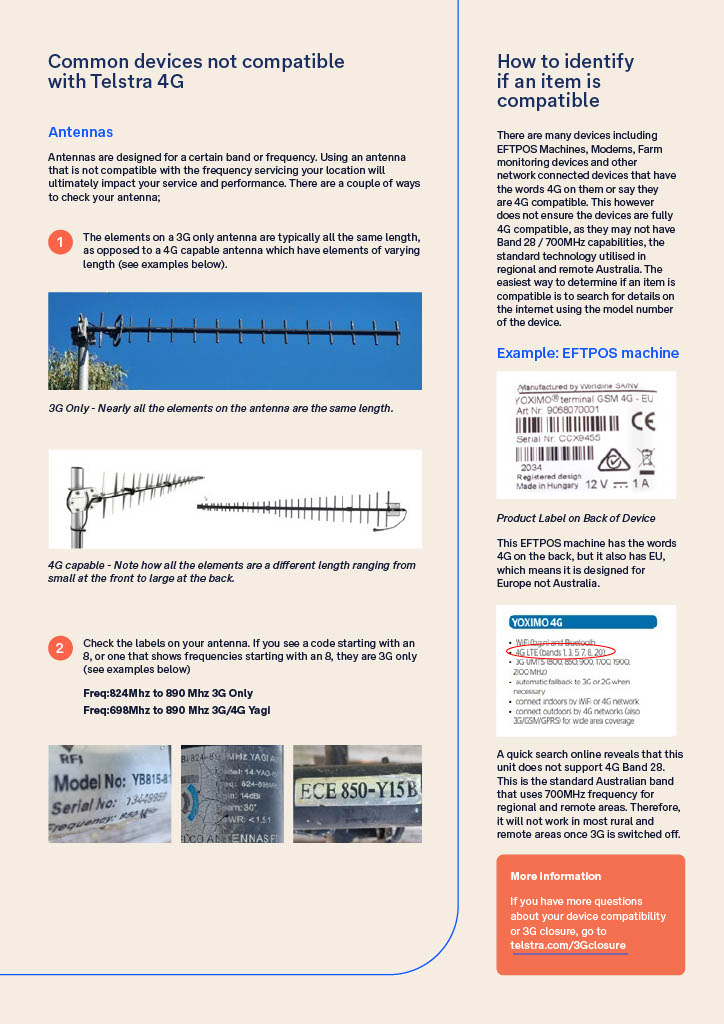
- Check the labels on your antenna. If you see a code starting with an 8, or one that shows frequencies starting with an 8, they are 3G only (see image below)
- Check for damaged cabling
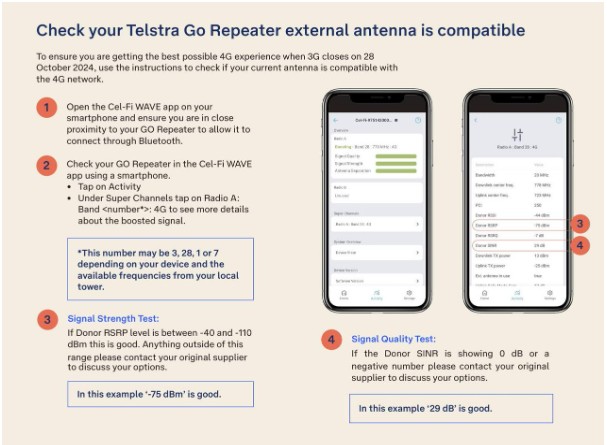
Follow these steps to check your Cel-Fi Go Repeater external antenna is compatible
- Open the Cel-Fi WAVE app on your smartphone and ensure you are in close proximity to your GO Repeater to allow it to connect through Bluetooth.
- Tap on Activity
- Under Super Channels tap on Radio A: Band <number*>: 4G to see more details about the boosted signal.
*This number may be 3, 28, 1 or 7 depending on your device and the available frequencies from your local tower. - Signal Strength Test: If Donor RSRP level is between -40 and -110 dBm this is good. Anything outside of this range please contact your antenna supplier. In the example in the image below ‘-75 dBm’ is good.
- Signal Quality Test: If the Donor SINR is showing 0 dB or a negative number please contact your antenna supplier. In the example in the image below ‘29 dB’ is good.
- Existing external antennas that cover 698 Mhz to 890 Mhz, and or 698 Mhz to 960 Mhz are fine for low band 4G and 5G i.e. 698 – 960Mhz. Low band 4G and 5G are the most likely bands that remote and regional customers will experience. Telstra Antenna Fact Sheet Download here
IMPORTANT NOTE: Older 3G-only (850Mhz) antennas may falsely appear to provide a useful signal, however replacement with a quality 4G compatible antenna is critical for a reliable service. Both Telstra and installers have advised that replacing Cel-Fi antennas is critical to maintaining a connection.

Telstra Antenna Fact Sheet Download here

- If your antenna is incompatible (e.g. designed for 3G), you’ll need to upgrade to a 4G-capable antenna. It’s likely you’ll also require new cabling.
Cel-Fi Wave App has an antenna Positioning Test tool for all cel-fi units connected to a directional antenna. The tool helps the user to find the best direction to point the antenna. Go to the Settings page and open the Antenna Settings section. Follow the troubleshooting tips as needed. More information here
NB: See notes under cel-fi repeaters about installers and where to purchase antennas.

- Photograph your current antenna setup and record the direction it is pointing. Add this information to the document you started above. If using the wave app take screenshots of the app and add these to the document. This information will help technicians troubleshoot more effectively.
Helpful Information:
- https://regionaltechhub.org.au/equipment/antennas-and-aerials/
- https://regionaltechhub.org.au/antennas-and-aerials-for…/
- https://www.telstra.com.au/…/go-repeater-fact-sheet.pdf
- https://www.telstra.com.au/support/mobiles-devices/3g-closure#antennasGoRepeaters
Cel-Fi Repeaters
If you’re using a Cel-Fi repeater to enhance your mobile coverage, here are some important settings to check, along with guidance on software updates and compatibility. Please note that while Cel-Fis are designed to extend coverage by boosting signals, they cannot overcome network congestion issues.
Below is a BIRRR graphic identifying the Telstra repeaters that will 


There are three models of newer cel-fi repeaters (see image below).
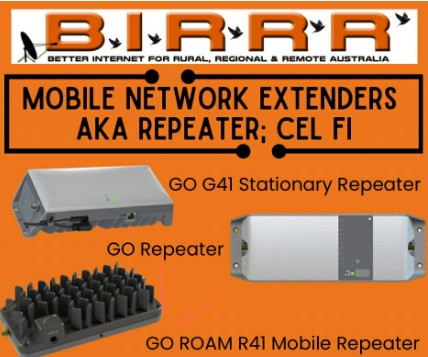
- Cel-Fi GO G31: is suitable for both stationary and mobile use and supports 4G 1800Mhz and 4G 700Mhz frequencies. These are the most common mobile network repeaters used in regional areas, particularly if you purchased several years ago. For many in RRR areas with only Telstra Band 28 available (703 Mhz – 788 Mhz), the GO G31 will continue to provide excellent service, both as a stationary and a mobile device.
- Cel Fi GO G41: is a newer model stationary repeater designed for stationary use that supports selected 4G and 5G bands. Cel-Fi GO G41 auto selects two bands simultaneously, supporting carrier aggregation (if you have the signals), however it does cost more. For the G41 to utilise 5G 850 MHz (n5/n26) Nextivity needs to develop new software, which should become available next year – date not available as yet.
- Cel-Fi ROAM R-41: is a newer model mobile repeater designed for mobile use that supports selected 4G and 5G bands. The R41 Cel-Fi Roam works on 5G 2600MHz frequency (Band 7 or n7) where it is available – right now – but needs Nextivity to provide new software to utilise 5G on 850MHz (n5/n26). The R41 auto selects a single frequency band at any one time.
Important Note on Illegal Boosters:
- Unapproved or illegal mobile boosters interfere with mobile networks and potentially result in financial penalties. Always use authorised equipment to ensure compliance and optimal performance.
Depending on your specific Cel-Fi model, the settings may vary. Contact your cel-fi supplier to access the correct settings.
- Download the Cel-Fi WAVE app:
First, download the Cel-Fi WAVE app from either the Google Play Store or Apple App Store on your smartphone. This app will allow you to manage and monitor your Cel-Fi device. - Check Cel-Fi Settings
Open the WAVE app and ensure your smartphone is in close proximity to the Cel-Fi repeater so it can connect via Bluetooth.
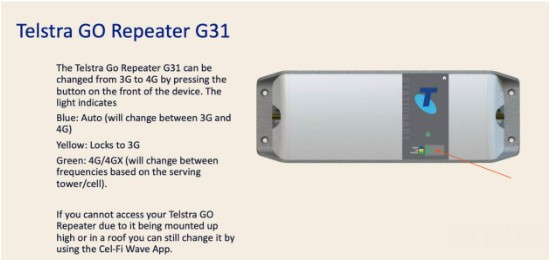
Tap on Settings > Band/Channel Settings, then expand the 4G selection. Make sure each band is toggled on (indicated in blue). This will enable the GO Repeater to boost 4G signals for better mobile coverage. - The Cel-Fi GO G31 can also be switched to 4G by pressing the button on the unit
- Currently the Cel-Fi R41 should be locked to Band 28. Long term, this is obviously not desirable as it limits the features of the product. There is no known date for the software release required.
In the WAVE app, tap Settings > Software Version and check if there are any updates available. If an update is required, tap Update now and wait for the process to complete. You can track the progress through the WAVE app.
Screenshot the wave app settings, take a photo of your cel-fi and add to the document you created above.
Use this Telstra document which outlines how to Check if your Telstra GO Repeater is configured to boost 4G signal with instructions on how to download the app, ensure your software is updated, check your settings and check if your external antenna is compatible.
Light indicator colours on a Telstra Go Repeater G31.
Where to purchase and get advice/ help with installation:
BIRRR does not recommend self installation. If you are looking at upgrading your repeater and/ or antenna, or for professional installation. BIRRR recommends the following companies who will be able to give advice specific to your location and situation:
- Your local antenna supplier/installer.
- Telco Antennas: https://www.telcoantennas.com.au/
- Powertec: https://powertec.com.au/
- Total Antenna: Total Antenna
- Telstra: offers professional installation services for antennas purchased directly from them, contact Telstra on 1800 305 307 to discuss your options or use this link here
- BIRRR has this page: Regional Telecommunications Equipment, Installers and Suppliers
Network settings, software updates & other tips
Check your network settings, software updates & other tips
If you’re experiencing mobile coverage issues following the 3G shutdown, ensure your device is optimised for the best possible performance. Here’s how:
Check that your device’s software is up to date. Software updates often include important improvements for network compatibility and performance.
BIRRR have found that the following checks are especially important after a device software update
- Turn your phone’s mobile connection off and back on. Use Airplane mode to disconnect and reconnect your network modems. This can help your device find the best available signal in your area.
- Also try turning your phone/device on and off
- Check that VPN is not connected – On an iphone > Settings > General > VPN & Device Management > VPN, then click the i symbol next to the connected VPN, turn off toggle Connect On Demand, then turn off VPN
- Check that 5G Standalone is switched off – On an iphone > Settings > Mobile > Mobile Data options > Voice & Data > Toggle Off 5G Standalone
Reset Your Network Settings
Be aware that this process will erase all saved Wi-Fi networks, passwords, and cellular settings, so you may need to re-enter these afterward. How to Reset Network Settings:
Android
- Go to Settings > System > Reset options > Reset network settings.
- Tap RESET SETTINGS to confirm.
iPhone
- Go to Settings > General > Transfer or Reset Iphone > Reset > Reset network Settings > Enter Passcode if prompted > Select Reset Network Settings again to confirm
Several factors can interfere with mobile signal strength:
- Physical obstacles: Buildings, trees, hills, and tall objects (e.g., silos) can block or reduce signal levels. If you’re indoors and experiencing poor signal, try moving closer to a window or an open area to improve reception.
- Device limitations: The quality of your handset or device can impact signal strength.
- Proximity to towers: Signal strength decreases the further you are from the nearest mobile tower.
- Congestion: During periods of high demand, such as tourist seasons, natural disasters, or major events, network congestion can lead to weaker signals and slower data speeds.
- Illegal Boosters: Unauthorized signal boosters can interfere with mobile networks, affecting your connection and that of others in the area. Take note if your issues occur during specific time periods – record these times on the document you have started above.
4. Check for Network Outages
Check that your area is not experiencing network outages that may be impacting your service.
- Telstra https://www.telstra.com.au/outages#/
- Optus https://www.optus.com.au/living-network/service-status
- TPG/Vodafone https://www.vodafone.com.au/network/upgrades
Document the Issues and contact your provider
Start by making a detailed list of the issues you’re facing. Can you make calls? Do calls drop out? Can you load data on your phone? What signal is showing (bars, SOS, satellite symbol)? Does the issue happen at specific times or on certain dates? Also, note the device you’re using. Add this information to the document you started above.
If you are on the move and having issues – on a road or in a paddock, screenshot your location in maps to add to the document.
Now, it’s time to reach out to your provider – your provider is who you pay for the mobile service. It could be Optus, Telstra, Vodafone or a reseller – you need to contact your provider, even if they resell through another carrier.
Telstra have recently opened a 3G Shutdown Helpline
Contact Telstra’s 3G Shutdown Helpline 1800 990 853 BETWEEN 8AM TO 7PM AEDT MONDAY TO FRIDAY
There is also a form where you can lodge 3G shutdown issues here
Some members have also found it useful to contact Telstra Regional team: https://www.telstra.com.au/forms/regional-australia-contact-us
Don’t forget to attach the document you created with your location, coverage maps, equipment photos, and details of the issues you are facing!
Optus Contact Details: https://www.optus.com.au/support/contact-us
TPG / Vodafone Contact Details: https://www.vodafone.com.au/contact
If you use a mobile reseller such as Woolworths, Aldi or Boost you will need to reach out to your provider regarding your issues.
Make sure you record any complaint reference numbers.
If you are still having issues after contacting your provider, please contact the Telecommunications Industry Ombudsman (TIO) – https://www.tio.com.au/complaints#/make-complaint
Mobile Alternatives
Use a fixed broadband connection, when at fixed locations
If you are using the mobile network as a fixed home or business connection, consider looking into other options for broadband and voice calls. Mobile networks were not designed for the large data use needed today and in regional areas can often be congested.
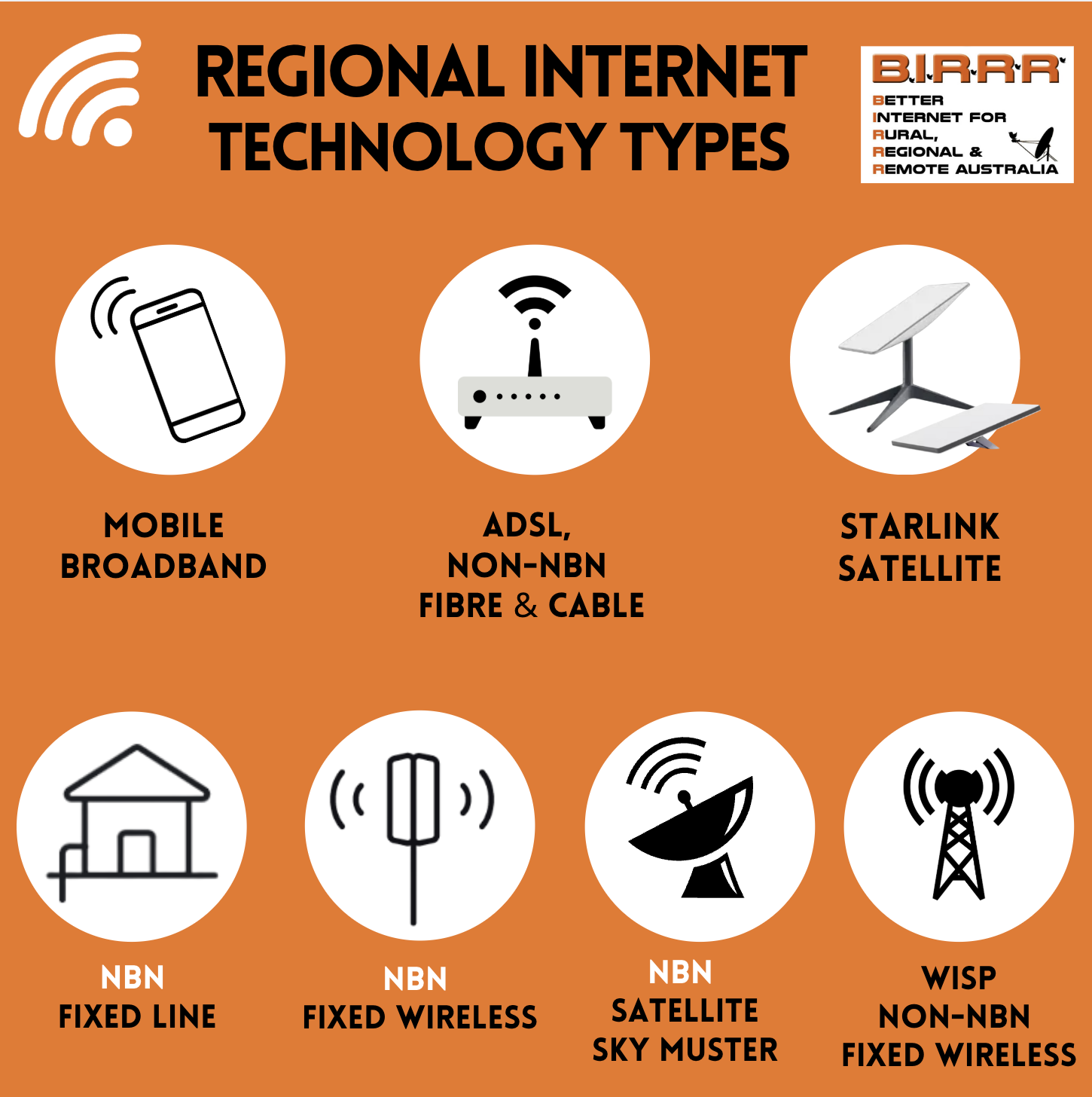
- Review your current connection and if using the mobile network, consider moving to a fixed home / business connection. There are a range of options in regional areas now – check the technologies available to you and check that you are using the best plan, provider, and equipment for your needs. Telecommunications are constantly changing, so it’s a good idea to do these checks on a yearly basis.
- For free, independent advice on your technology, contact the Regional Tech Hub. They can guide you on staying connected with the right solutions for your needs at www.regionaltechhub.org.au
- Look at getting a fixed home connection utilising one of the technologies available in regional areas (that isn’t the mobile network).
NB: All Australian premises can access a nbn connection (or equivalent), however not all providers sell all types of nbn. Check your address here: https://www.nbnco.com.au/learn/rollout-map , if you have issues in your address mapping the Regional Tech Hub can help get this resolved.
- The Regional Tech Hub can conduct a free, independent bespoke connectivity report outlining all your connectivity options at your specific address and help you find a service to meet your needs and budget – www.regionaltechhub.org.au/request-a-connectivity-report/
- Use Wi-Fi Calling to make voice calls and SMS over Wi-Fi when at fixed home/business locations.
NB: Based on BIRRR’s experience, Wi-Fi Calling often works better if your device is set to Airplane mode and then reconnected to Wi-Fi. This setup reduces interference from weak mobile signals.
- Check out BIRRR’s Page – Staying Connected When on the Move – for suggestions on how to extend mobile coverage and utilising mobile alternate technologies to stay connected. https://birrraus.com/2024/05/29/on-the-move/
- Businesses: Check that your payment systems work with both Wi-Fi and SIM cards (mobile network). Contact your bank or provider to ensure compatibility and avoid disruptions.
- Community Wi-Fi Hubs: Connect with your local council or chamber of commerce to discuss installing community wi-fi in strategic hot spots in your town – there are grants available to help with the costs
- Get your LGA to develop a connectivity plan, and ensure this considers mobile and fixed broadband gaps and opportunities. BIRRR are happy to assist LGA’s who are seeking independent advice – we can be reached at birrraus@gmail.com
- Spread the word and refer to trusted sources: Encourage your community to seek independent advice from BIRRR and the Regional Tech Hub. Misinformation remains a major barrier in regional connectivity, but together, we can break through it.

Telstra FAQ on 3G Shutdown here
Developed for BIRRR by Kristy Sparrow, Julie Stott, Alana Moller & John Kitchener from extensive research and publicly available information on 3G closure, updated 22/02/2025
*Please note, while all care has been taken in compiling BIRRR documents, we recommend that you check with your service provider / equipment manufacturer regarding 3G shutdown
 Better Internet for Rural, Regional & Remote Australia (BIRRR)